This was a simple little thing I saw Sandra Mahan do during a Teams meeting yesterday, but it had completely skipped my notice earlier. When you’re in a Teams Channel tab (other than Conversation), you can expand the screen to remove all the Teams information on the left side of your screen. There’s an Expand Tab icon that does that for you. Here’s how it works.
Tag: Microsoft Teams
Spicing up your Microsoft Teams channel posts and conversations
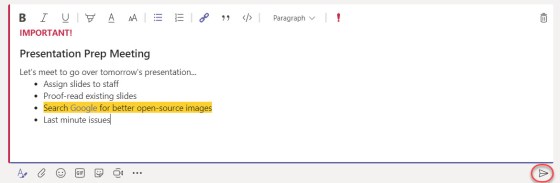
In the Conversation tabs of your various Microsoft Teams channels, you can have a lot of information going back and forth that just sort of blends together into a blur. That’s fine for the normal team chatter, but you may have something to post in there that should be more noticeable than everything else. That’s when you want to use the Formatting feature in the post area. Here’s how to do that…
Using your Activity Stream in Microsoft Teams
If you belong to a number of Microsoft Team workspaces, it can be a little overwhelming to keep track of all the conversations and activities going on in every one of the Teams you are part of. However, you can use the Activity Stream and the associated filter to make it easier to see just the items that are most important to you at that point in time. Here’s how that works…
Using the Organization Chart in Microsoft Teams
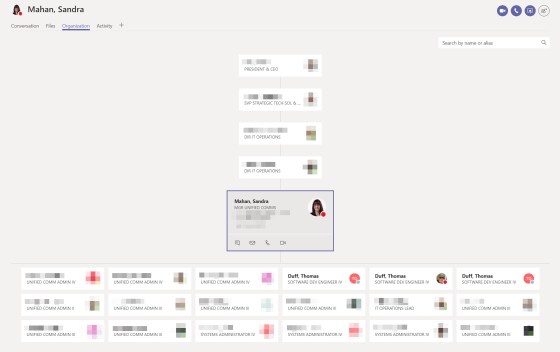
It’s a pretty common thing to run across someone’s name and wonder where they fall into the company organization chart. One way you can figure that out quickly is to use the Organization feature in Microsoft Teams. Here’s how…
Moving files around in Teams and OneDrive (and back again)
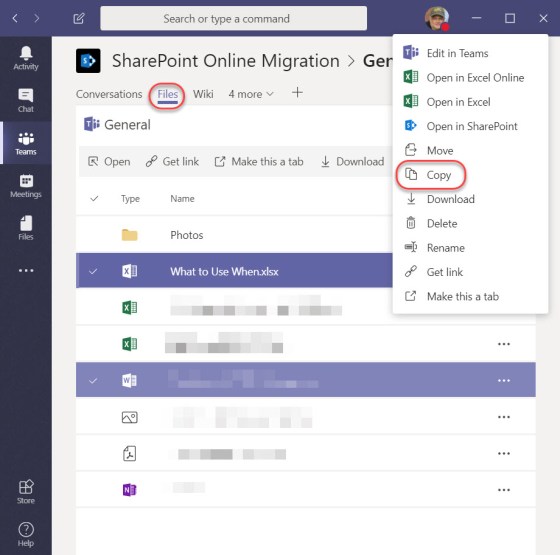
If you’re new to Teams or OneDrive, you may think that moving files from one place to another may involve copying it to your computer and then copying it to the target destination. However, both Teams and OneDrive come with options to copy directly from one location to another. Here’s how that works…
Navigating forward and backwards in Teams
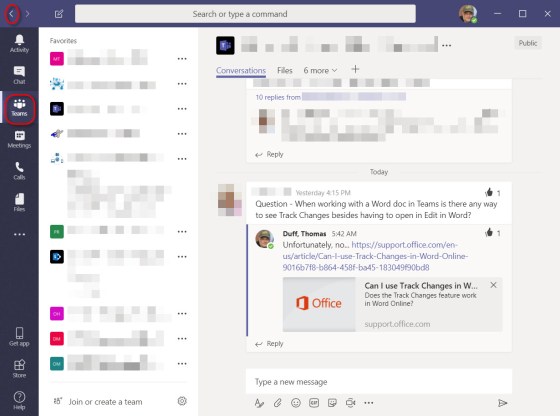
Since I’ve started to use Microsoft Teams, I’ve been a bit frustrated when it comes to getting back to the place where I was at when I clicked a different icon or link. However, I completely missed the Forward and Back navigation arrows in the upper left corner of the Teams client. Here’s how they work…
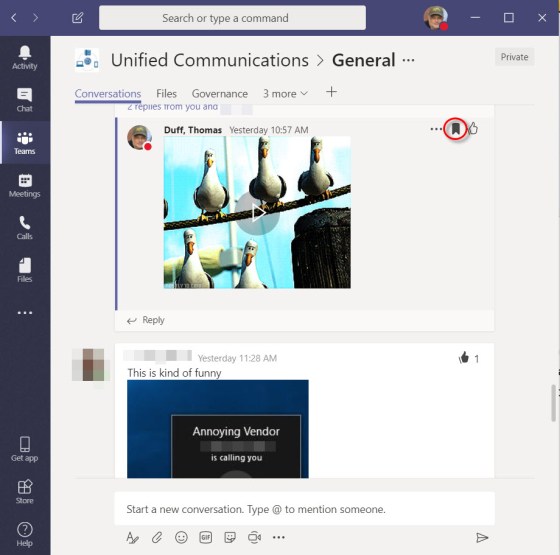
Bookmarking Teams chat and conversation items with the Saved (Bookmark) icon
While Microsoft Teams makes it very easy to have chats and persistent conversations throughout the day, there are times you might want to flag a particular entry in the chat or conversation for follow-up or additional action. You can do that with the Saved, or Bookmark, icon in each chat entry. Here’s how that works…
Making your voice heard at Microsoft – UserVoice sites for our relevant software
Hardly a day goes by that we don’t get a question from someone along the lines of “does do , and why doesn’t it?”. Or, there’s the “when will Microsoft change to allow us to do ” question. Bottom line… we don’t know, and we have virtually no sway to influence Microsoft to change their software… but you do!
Adding a Background Blur to your video meetings in Microsoft Teams
If you’re used to having video meetings in Microsoft Teams and you’re the person on the video, I know you’ve thought about what might be showing in the background while you’re presenting. You may be neat and tidy, or you… may not be. I would be in that second category… But now in Microsoft Teams, you can use the Background Blur option to make it harder to tell just how many pizza boxes might be right behind you. Here’s how…