Episode 121 of the Microsoft 365 Pulse Roadmap webcast is now out on YouTube. Join Jennifer Mason, Tamara Bredemus, Adam Ochs, and myself as we cover this week’s updates.
Learning new Microsoft Office tricks in "just a minute"
Episode 121 of the Microsoft 365 Pulse Roadmap webcast is now out on YouTube. Join Jennifer Mason, Tamara Bredemus, Adam Ochs, and myself as we cover this week’s updates.
Episode 120 of the Microsoft 365 Pulse Roadmap webcast is now out on YouTube. Join Tamara Bredemus and myself as we cover this week’s updates.

When I’m trying to monitor the chat in a Teams meeting, I find it highly frustrating that the pop-up notification banners end up overlaying the area where I’m trying to type in a chat response. All I want is a way to stop the notifications for a particular meeting I happen to be in. Now I have a way to mute those notifications. Here’s how that works…
Episode 119 of the Microsoft 365 Pulse Roadmap webcast is now out on YouTube. Join Tamara Bredemus and myself as we cover this week’s updates.

This is a new feature that I’ve been waiting for, and Sandra found that it hit our tenant the other day! You can now create a Board View for a SharePoint list. Imagine having a kanban-style view where you can drag and drop items between columns and have the status update automatically. Here’s how it works…
Episode 118 of the Microsoft 365 Pulse Roadmap webcast is now out on YouTube. Join Tamara Bredemus, Adam Ochs, and myself as we cover this week’s updates.

When you’re in a busy one-on-one or group chat, there’s a chance that an important message might scroll off the screen before you have a chance to see it and reply. You now have the ability to pin a chat message to the top of the screen where it will remain until it’s unpinned or replaced. Here’s how that works…
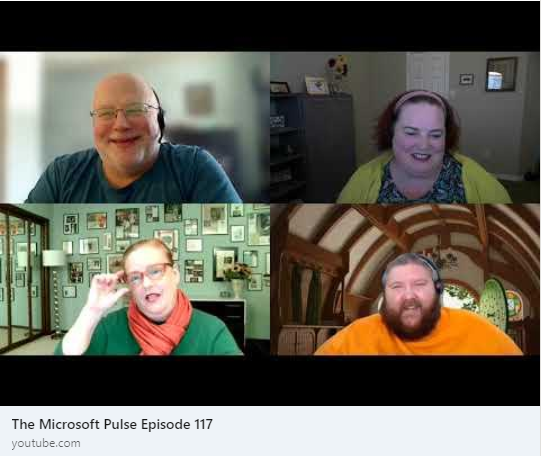
Episode 117 of the Microsoft 365 Pulse Roadmap webcast is now out on YouTube. Join Jennifer Mason, Tamara Bredemus, Adam Ochs, and myself as we cover this week’s updates.
 One Minute Office Magic