Episode 126 of the Microsoft 365 Pulse Roadmap webcast is now out on YouTube. Join Adam Ochs, Tamara Bredemus, and myself as we cover this week’s updates.

Learning new Microsoft Office tricks in "just a minute"
Episode 126 of the Microsoft 365 Pulse Roadmap webcast is now out on YouTube. Join Adam Ochs, Tamara Bredemus, and myself as we cover this week’s updates.

It’s frustrating to put together a great looking page in SharePoint, only to have someone point out a spelling or grammar error. Up until now, you didn’t have a good way to make sure your page content was spelled correctly and used correct grammar. Now you do… Your content in a text web part on your page will be grammar- and spell-checked. Here’s what it looks like…

Episode 124 of the Microsoft 365 Pulse Roadmap webcast is now out on YouTube. Join Adam Ochs, Tamara Bredemus, and myself as we cover this week’s updates.
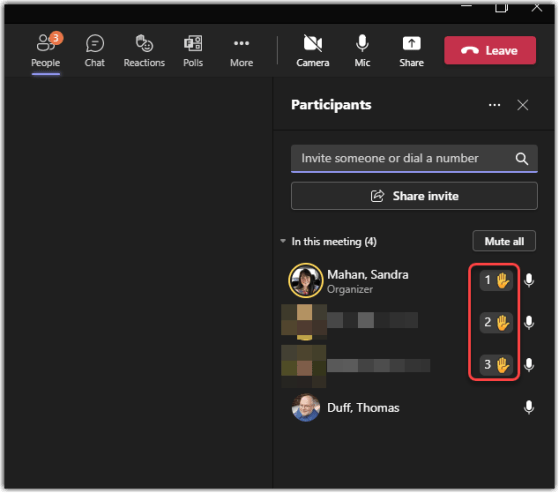
Seeing raised hands in a Teams meeting is a great way for people to ask questions in an orderly fashion. But if you have a number of people raise their hands at once, it may be hard to tell who should be called on in what order. Now Teams shows the order of raised hands, making it infinitely easier to tell who is first, who is next, and so on. Here’s what that looks like…

Episode 123 of the Microsoft 365 Pulse Roadmap webcast is now out on YouTube. Join Tamara Bredemus, Adam Ochs, and myself as we cover this week’s updates.
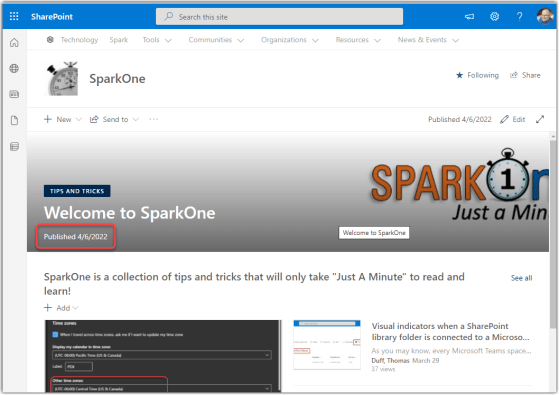
This is a nice feature that we recently had show up in our tenant. You can now set the page header on a SharePoint Online page to show the Published date so that everyone can see when it was last updated. Here’s how you do that…
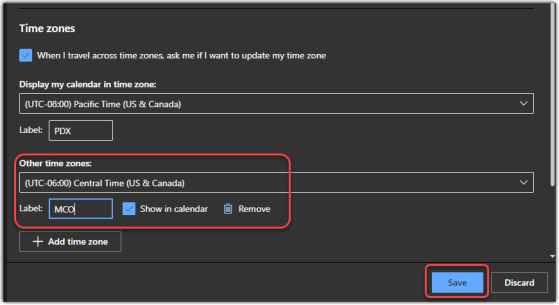
My colleague Sandra got a nice surprise today… she got a pop-up in her web-based Outlook calendar that pointed her to a new feature… adding time zones! This is a really cool feature for those of us who work and live in more than one time zone. Here’s how it works…

Episode 122 of the Microsoft 365 Pulse Roadmap webcast is now out on YouTube. Join Jennifer Mason, Tamara Bredemus, Adam Ochs, and myself as we cover this week’s updates.
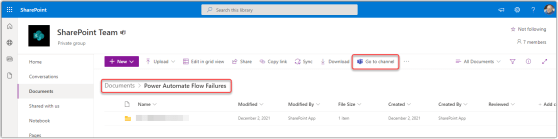
As you may know, every Microsoft Teams space has a SharePoint site attached to it in the background. All your files that you post in a Teams channel get stored in the backend SharePoint site in the Documents library, and the folder that they’re stored in matches the name of the Teams channel. However, if you’re just looking at the SharePoint Documents library, you may not know which folders are connected to Teams channels. Now there’s an indicator that makes that more obvious. Here’s how that works…
 One Minute Office Magic