Fixing your quirky spelling errors in Office

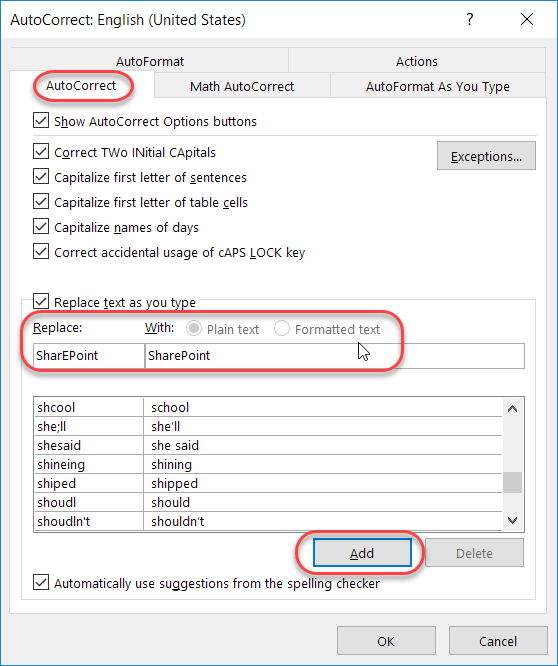
Admit it… you have a few(?) words that you always misspell or mistype when working on a Word document, a PowerPoint deck, an Excel file, a OneNote notebook, or an Outlook email. And, for whatever reason, the program decides that your quirky spelling isn’t important enough to fix for you automagically. Well, you can actually add your own spelling quirks to Office so that you don’t have to wear out the backspace key fixing your errors. And yes… this is a case where you can fix it once, and *all* the programs will pick up the change!
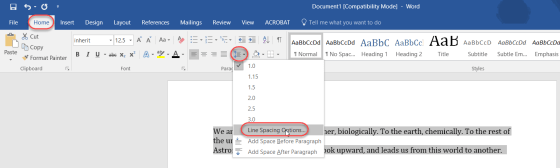
Controlling paragraph spacing in Word

For those of us who don’t spend a lot of time in Word documents, getting the right and/or consistent paragraph spacing seems to be an effort in manual line feeds. But as pointed out by a colleague, there is an easy way to set the paragraph spacing automatically for a specific paragraph or an entire document. Here’s how…

Adding Page Breaks to your Word document

We’ve all been there… you have a Word document where the last few lines of a paragraph spill over to a new page, and you would rather have it all together. Rather than try and manually move the paragraph down to the new page with line breaks, it’s better to use the Page Break feature in Word to do that!

Inserting screenshots in Word

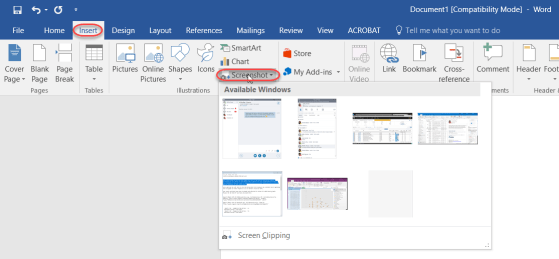
This is an awesomely cool trick I learned from Christian Buckley during our last Office Productivity Tips Grudge Match webinar. This allows you to easily pull a screenshot of an open Window into your Word 2016 document. Here’s how it works…

Checking the readability of your Word documents

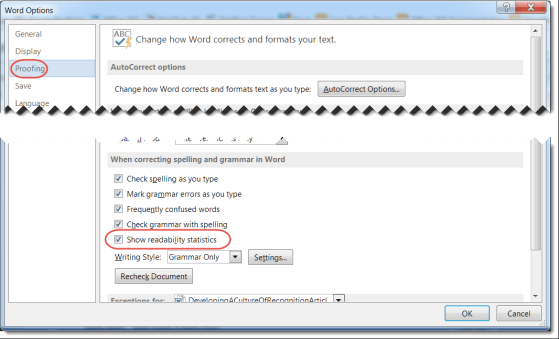
When you create a Word document, there are a number of things to consider. After making sure you don’t have any typos or grammatical errors, you should check to see how easy it is to read and understand. One standard in this area is the Flesch Reading Ease and Flesch-Kincaid Readability Score. Microsoft can provide these statistics for you automatically.

Creating columns in a Word document

Normally I’m content using a Word layout that stretches from the left to the right margins. But there are times when I’d like to have a layout that looks more like a newspaper or magazine, where there are two or three columns running down the page.

Well, you can do that in Word…

Various Copy/Paste options between Excel and Word

On more than one occasion, I’ve been in the position of having some data stashed in an Excel spreadsheet, but I need to have it be part of a Word document. I could give my audience two files to see everything, but I really want to have everything in a single Word document… What to do?

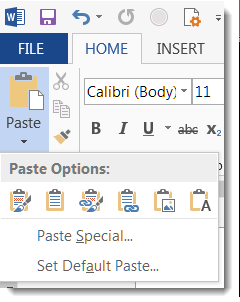
Instead of just copying and pasting some cells from Excel into Word, I can use the Paste button dropdown to get some interesting options on how the data will show up in Word.