Due to customer requests to increase file size upload limits, Microsoft now allows uploads of 250 gigabytes (GB) (up from 100 GB) in OneDrive for Business and SharePoint Online.
Having said that, please do not look at this as a challenge…
Learning new Microsoft Office tricks in "just a minute"
Due to customer requests to increase file size upload limits, Microsoft now allows uploads of 250 gigabytes (GB) (up from 100 GB) in OneDrive for Business and SharePoint Online.
Having said that, please do not look at this as a challenge…
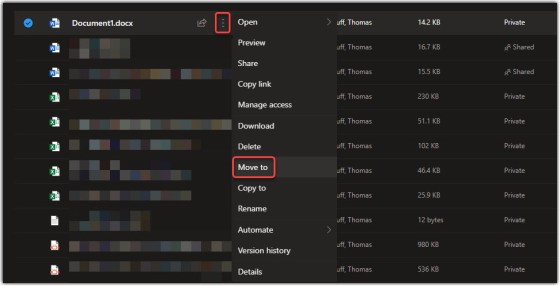
If you’re using OneDrive to create documents and files before you’re ready to share them with a larger audience… great job! Now that your document is ready to be shared, you can use the built-in Move and Copy options to get that file out to a SharePoint site without any hassles. Here’s how that works…
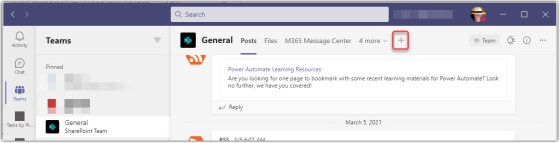
As you consolidate more of your work (and your work day) in Microsoft Teams, it’s a good idea to make as much content as possible available within Teams so you don’t have to search somewhere else for it. The SharePoint Tab in a Microsoft Teams workspace now allows you to show lists and libraries of SharePoint sites in addition to individual pages. Here’s how that works…

The Quick Links web part on a SharePoint Online page is a great way to share a number of relevant link in a compact space. However, you may not always want everyone to see every link in the web part. Now you can use Audience Targeting within the Quick Links web part to filter out who sees what links on the page. Here’s how it works…
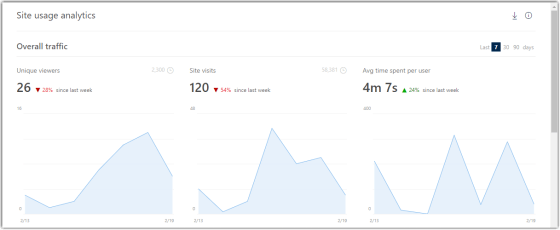
One of the common requests we get on the SharePoint team is whether or not someone can get site usage statistics for their SharePoint site. My usual answer is a qualified “yes”, as they normally want something more detailed than what SharePoint provides. I hope that someday the site usage data becomes more detailed, but until then, here’s what we have and how it works…

If you’ve been working with computers prior to “the cloud”, it’s very easy to have your behavior default to saving your files to your local hard drive or a file share. However, now with SharePoint Online and OneDrive, doing that limits the opportunities you have to work with the files in new and collaborative ways. Instead, start creating and saving your files directly to SharePoint document libraries or your OneDrive space. Here’s how that works…

As part of all the recent changes to lists in SharePoint Online, there’s a new view format you might want to check out… the Gallery View. This is an interesting way to display list data, especially if it involves images. Here’s how it works…

One of the latest features that’s been added to SharePoint Online (and Microsoft) Lists is the ability to comment on a particular list item. Much like when you add comments to Word or Excel documents, you can now do the same for list items. Here’s how it works…

Have you ever been making updates in a SharePoint Online list using Grid View, and you notice that you incorrectly updated a field that’s updated the list item… or worse, deleted something that shouldn’t have been deleted? Well, you’ll love the new Undo/Redo feature in SharePoint Online lists. Here’s how it works…
 One Minute Office Magic