There have been times I would have liked to have made a note or two in a spreadsheet so I could remember something associated with a piece of data. I wish I had known about adding comments, but I do now!

Learning new Microsoft Office tricks in "just a minute"
There have been times I would have liked to have made a note or two in a spreadsheet so I could remember something associated with a piece of data. I wish I had known about adding comments, but I do now!

A colleague pointed out this option to me the other day, and it’s a good one to share. In Office programs like Word or OneNote, the system often uses your initials to note who made changes. But perhaps you need to change your initials for some reason (duplicate of someone else, you don’t like them, etc.). Here’s how you do that…
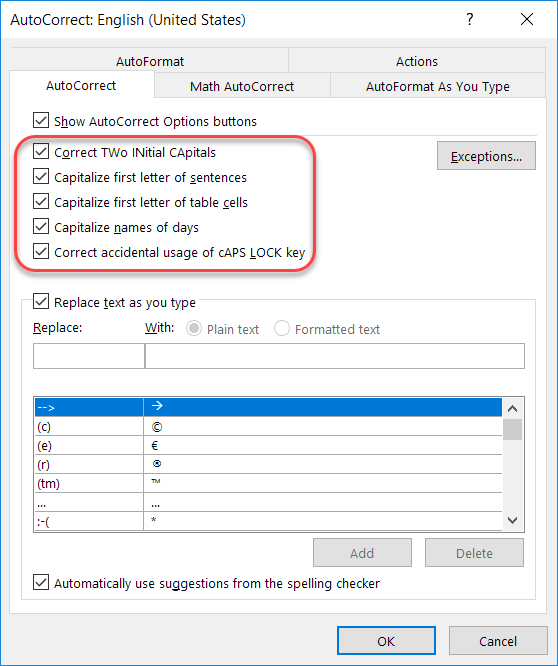
Recently I talked about how to add and remove particular words and acronyms that Office “helpfully” tries to correct for you. In this tip, I want to point out a few other options that are interesting and might address a pain point or two based on how your fingers and your brain communicate with each other…
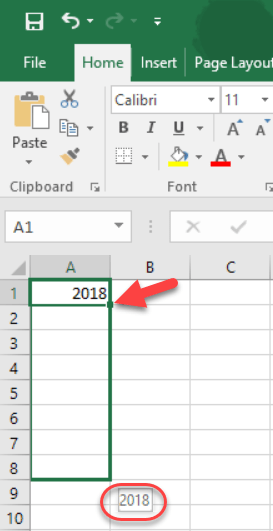
One of the cool things about working with Excel is the ability to click on the Fill Handle in the lower right corner of a cell, and then drag it to auto-fill values based on what’s in the original cell. However, it can be frustrating to figure out whether it’s going to copy the value or auto-fill based on the next value in the sequence. Here’s a brief overview on how you can get it to copy or fill based on what you need, regardless of what Excel wants to do for you automagically…
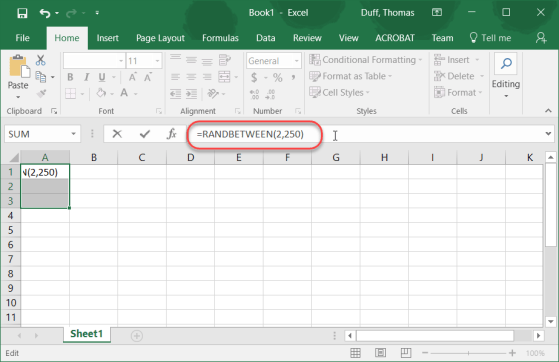
On Twitter this weekend, I found a cool link on how to generate random numbers in Excel. Considering I normally use a random number generator site to do this, I thought it was a pretty cool tip.

Not being an Excel guru, I tend to do things manually instead of using features that can make things a LOT faster… such as selecting all the data in an Excel spreadsheet. I’ve been known to do a lot of scrolling to find the end points and dragging to select everything. It’s a lot easier just to use the CTRL-A keyboard shortcut!
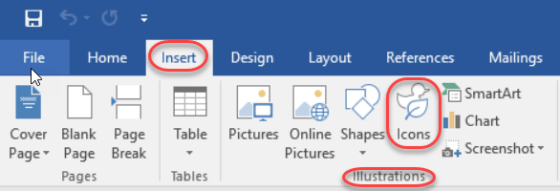
This is one of those things that was easy to overlook in all the new features in Office ProPlus (aka Office 2016), and that’s the new Icons feature in the Insert section of the Ribbon Bar. In fact, when it first rolled out, it really didn’t work very well as it was trying to pull the icons from a 3rd party site (or so it appeared), and I couldn’t get any of them to load. But now it’s working fine. Here’s how you can use them…

Generally speaking, the Auto-Correct feature in Microsoft Office is great in fixing your typing mishaps. But depending on the industry you work in, there are certain acronyms that are constantly mistaken by Auto-Correct as misspellings. Here’s how you can fix that…
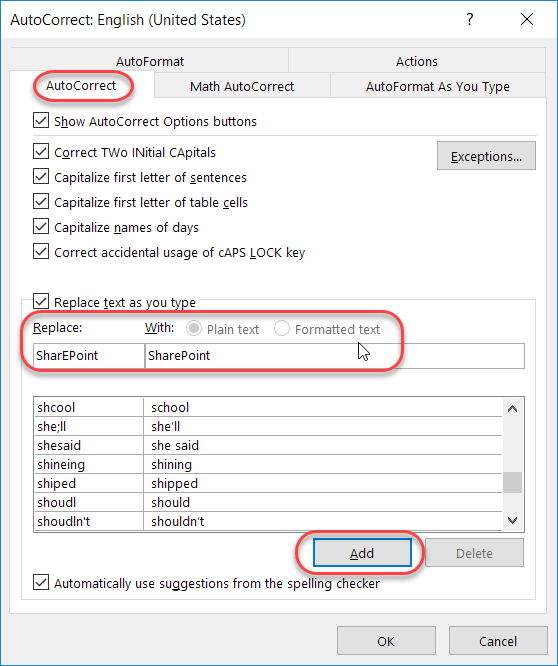
Admit it… you have a few(?) words that you always misspell or mistype when working on a Word document, a PowerPoint deck, an Excel file, a OneNote notebook, or an Outlook email. And, for whatever reason, the program decides that your quirky spelling isn’t important enough to fix for you automagically. Well, you can actually add your own spelling quirks to Office so that you don’t have to wear out the backspace key fixing your errors. And yes… this is a case where you can fix it once, and *all* the programs will pick up the change!
 One Minute Office Magic