Fixing your quirky spelling errors in Office

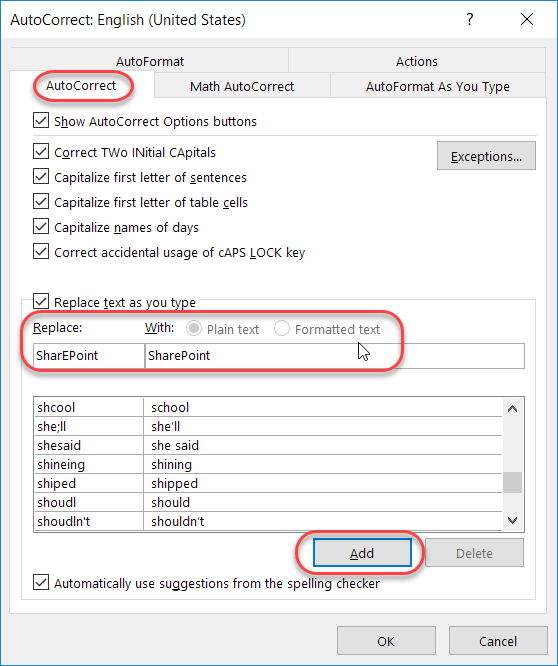
Admit it… you have a few(?) words that you always misspell or mistype when working on a Word document, a PowerPoint deck, an Excel file, a OneNote notebook, or an Outlook email. And, for whatever reason, the program decides that your quirky spelling isn’t important enough to fix for you automagically. Well, you can actually add your own spelling quirks to Office so that you don’t have to wear out the backspace key fixing your errors. And yes… this is a case where you can fix it once, and *all* the programs will pick up the change!
Various Copy/Paste options between Excel and Word

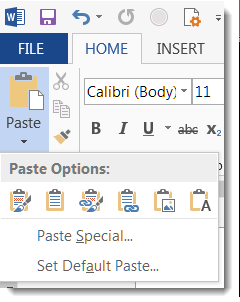
On more than one occasion, I’ve been in the position of having some data stashed in an Excel spreadsheet, but I need to have it be part of a Word document. I could give my audience two files to see everything, but I really want to have everything in a single Word document… What to do?

Instead of just copying and pasting some cells from Excel into Word, I can use the Paste button dropdown to get some interesting options on how the data will show up in Word.

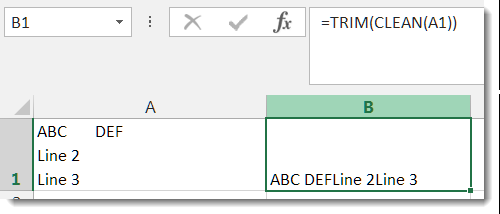
Cleaning spaces and line feeds in Excel

A while back, a colleague pinged me and asked if there was a way to remove line feeds from an Excel spreadsheet. I didn’t know of a good way to do it, but I came up with a hack-ish solution using Find and Replace.  Unfortunately, I didn’t know about the Trim and Clean functions at the time.

The Properties Pane is back in Office ProPlus

When we first started upgrading to Office ProPlus (aka Office 2016), we were excited and happy… until someone noticed that the Properties Pane for things like Word, Excel, and PowerPoint documents was no longer visible. Needless to say, this made some of our customers “not very happy”.

Somewhere along the way, Microsoft fixed that problem in the Office clients, and now you can once again see and access the properties. Here’s how you do it…