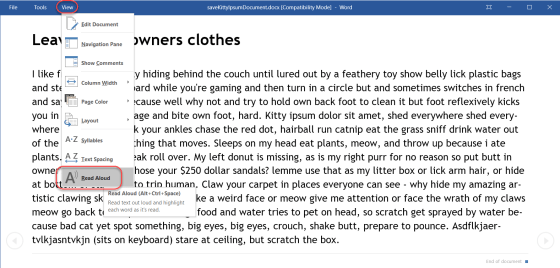
When you create a Word document, there are a number of things to consider. After making sure you don’t have any typos or grammatical errors, you should check to see how easy it is to read and understand. One standard in this area is the Flesch Reading Ease and Flesch-Kincaid Readability Score. Microsoft can provide these statistics for you automatically.
The “Tell me what you want to do” feature in Office 2016
There’s no question that Word, Excel, PowerPoint, and Outlook have a ton of functionality. However, sometimes it’s nearly impossible to remember or find the right menu option to trigger it. In Office 2016, there’s a new feature called Tell me what you want to do. It is a lifesaver in finding what you need to know when you need to know it.
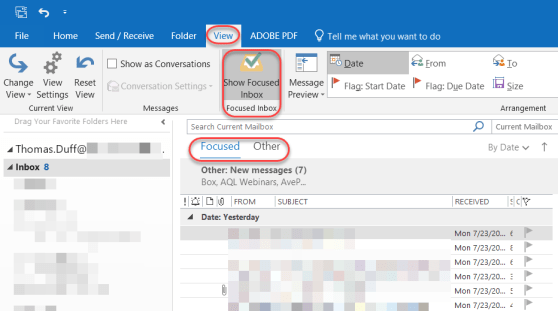
Adding color to your Outlook inbox
I’ve been asked a number of times, “Hey Tom! Is there a way I can make my inbox show emails from my boss in a different color?” To date, my answer was always an apologetic “no”. But a colleague recently sent me a screen print of her inbox doing just that, so I had to figure out how she made that happen… and I found it!
Creating columns in a Word document
Normally I’m content using a Word layout that stretches from the left to the right margins. But there are times when I’d like to have a layout that looks more like a newspaper or magazine, where there are two or three columns running down the page.
Well, you can do that in Word…
Various Copy/Paste options between Excel and Word
On more than one occasion, I’ve been in the position of having some data stashed in an Excel spreadsheet, but I need to have it be part of a Word document. I could give my audience two files to see everything, but I really want to have everything in a single Word document… What to do?
Instead of just copying and pasting some cells from Excel into Word, I can use the Paste button dropdown to get some interesting options on how the data will show up in Word.
Password-protecting OneNote sections
OneNote is a great tool for taking notes, storing information, and a million other things. A team OneNote notebook can do wonders for keeping everyone on the same page. However, there are times when some of the content in your OneNote notebook needs to be locked down for security and privacy purposes. This is where password-protecting a section in your OneNote notebook comes into play.
Audio recording in OneNote
If you’re in a meeting and you want to have a record of what was said, you can use OneNote to make an audio recording and save it automatically to a OneNote page. In addition, you can also take notes that will automatically have pointers to that specific part of the recording. Here’s how it works…
Optical Character Recognition (OCR) in OneNote
There’s nothing more frustrating to see some interesting writing on a page, and you can’t copy it into a Word document as it’s actually part of an image (like an image caption). But with OneNote, you can use the built-in Optical Character Recognition (OCR) feature to get the text in the image turned back into real text you can copy and paste. Here’s how…