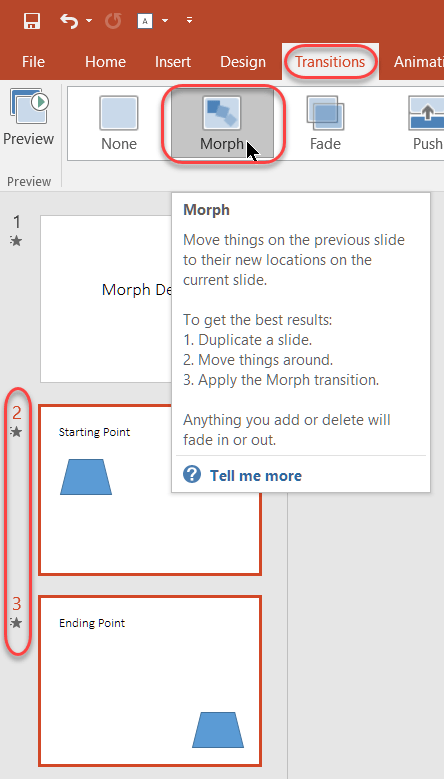
Various Copy/Paste options between Excel and Word

On more than one occasion, I’ve been in the position of having some data stashed in an Excel spreadsheet, but I need to have it be part of a Word document. I could give my audience two files to see everything, but I really want to have everything in a single Word document… What to do?

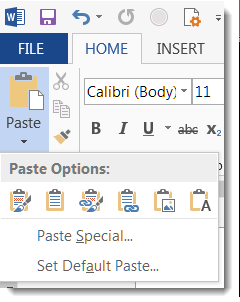
Instead of just copying and pasting some cells from Excel into Word, I can use the Paste button dropdown to get some interesting options on how the data will show up in Word.
Password-protecting OneNote sections

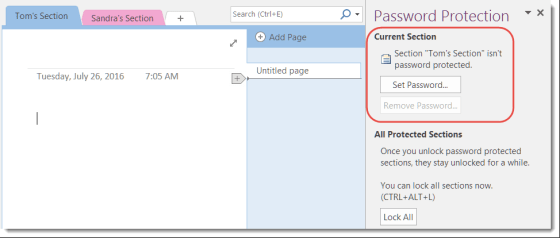
OneNote is a great tool for taking notes, storing information, and a million other things. A team OneNote notebook can do wonders for keeping everyone on the same page. However, there are times when some of the content in your OneNote notebook needs to be locked down for security and privacy purposes. This is where password-protecting a section in your OneNote notebook comes into play.

Audio recording in OneNote

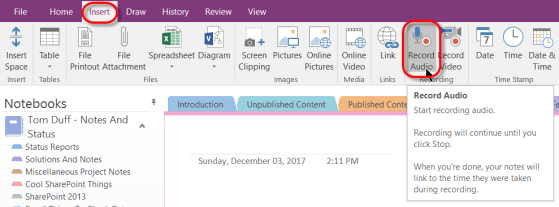
If you’re in a meeting and you want to have a record of what was said, you can use OneNote to make an audio recording and save it automatically to a OneNote page. In addition, you can also take notes that will automatically have pointers to that specific part of the recording. Here’s how it works…

Optical Character Recognition (OCR) in OneNote

There’s nothing more frustrating to see some interesting writing on a page, and you can’t copy it into a Word document as it’s actually part of an image (like an image caption). But with OneNote, you can use the built-in Optical Character Recognition (OCR) feature to get the text in the image turned back into real text you can copy and paste. Here’s how…

Selecting text in Word

I tend to do a lot of clicking and dragging the cursor to select text in Word. But these two tips are very useful for saving time and effort when it comes to grabbing sentences and paragraphs.