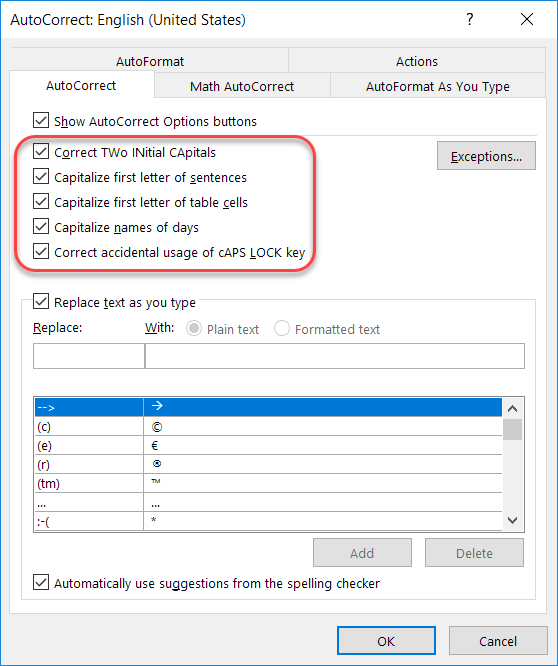
Recently I talked about how to add and remove particular words and acronyms that Office “helpfully” tries to correct for you. In this tip, I want to point out a few other options that are interesting and might address a pain point or two based on how your fingers and your brain communicate with each other…
Category: OneNote
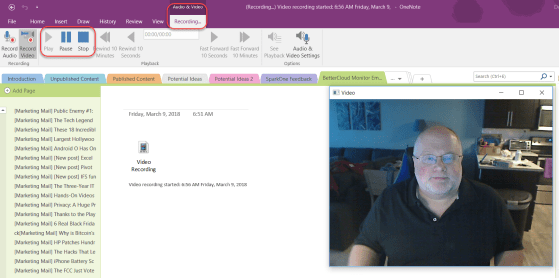
Making quick video recordings in OneNote
Let’s say you want to create a quick video of yourself, either to let your team know something, or perhaps just as a reminder to yourself to take care of some items. OneNote has a basic video recording function built in, and it’s perfect for those basic types of videos (not screen captures… just whatever your vidcam is picking up). Here’s how it works…
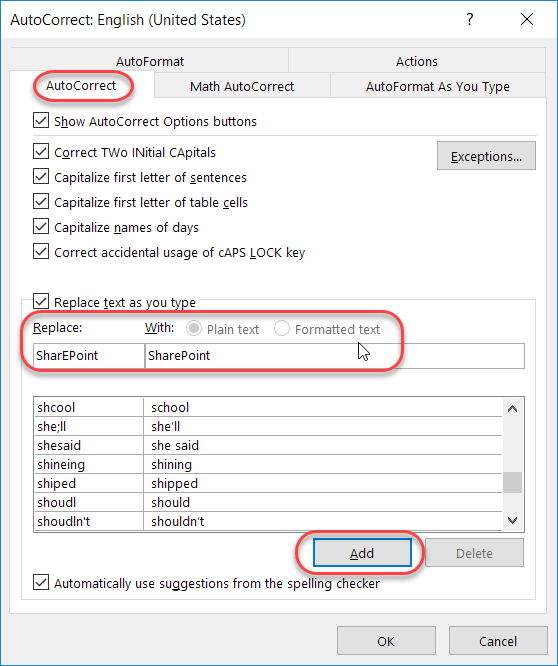
Fixing unintended auto-corrects in Office
Generally speaking, the Auto-Correct feature in Microsoft Office is great in fixing your typing mishaps. But depending on the industry you work in, there are certain acronyms that are constantly mistaken by Auto-Correct as misspellings. Here’s how you can fix that…
Fixing your quirky spelling errors in Office
Admit it… you have a few(?) words that you always misspell or mistype when working on a Word document, a PowerPoint deck, an Excel file, a OneNote notebook, or an Outlook email. And, for whatever reason, the program decides that your quirky spelling isn’t important enough to fix for you automagically. Well, you can actually add your own spelling quirks to Office so that you don’t have to wear out the backspace key fixing your errors. And yes… this is a case where you can fix it once, and *all* the programs will pick up the change!
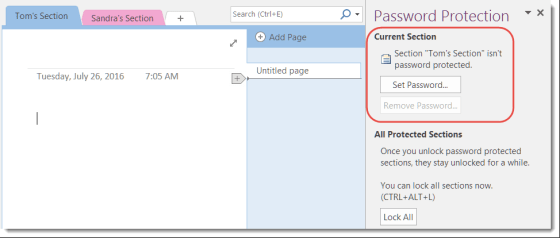
Password-protecting OneNote sections
OneNote is a great tool for taking notes, storing information, and a million other things. A team OneNote notebook can do wonders for keeping everyone on the same page. However, there are times when some of the content in your OneNote notebook needs to be locked down for security and privacy purposes. This is where password-protecting a section in your OneNote notebook comes into play.
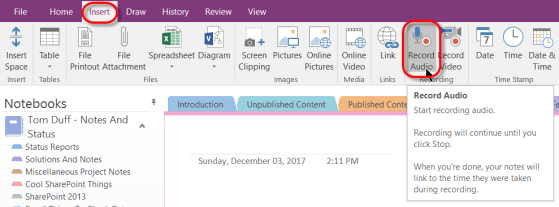
Audio recording in OneNote
If you’re in a meeting and you want to have a record of what was said, you can use OneNote to make an audio recording and save it automatically to a OneNote page. In addition, you can also take notes that will automatically have pointers to that specific part of the recording. Here’s how it works…
Optical Character Recognition (OCR) in OneNote
There’s nothing more frustrating to see some interesting writing on a page, and you can’t copy it into a Word document as it’s actually part of an image (like an image caption). But with OneNote, you can use the built-in Optical Character Recognition (OCR) feature to get the text in the image turned back into real text you can copy and paste. Here’s how…
Customizing AutoCorrect in Office programs
I think AutoCorrect in the different Office programs (such as Word, Excel, and PowerPoint) is a lifesaver when it comes to creating documents with no (or fewer) typos.
What you may not know is that you have the ability to do a lot of customization in AutoCorrect in order to make it work best for your particular situations.
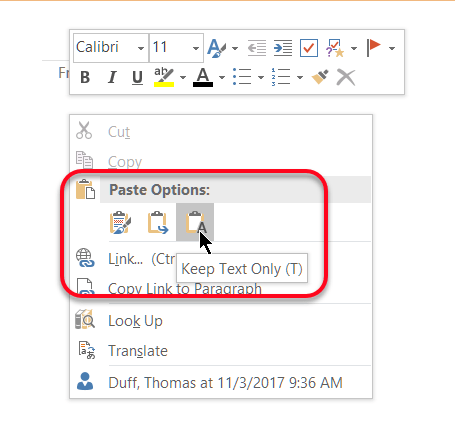
Setting the Default Paste option in OneNote
This tip was pointed out to me by a colleague and was originally pointed out in this post Can I set the default paste in OneNote as “Keep Text Only”? It’s a nice way to make OneNote paste content in the way that’s most applicable to your working style.