Not being an Excel guru, I tend to do things manually instead of using features that can make things a LOT faster… such as selecting all the data in an Excel spreadsheet. I’ve been known to do a lot of scrolling to find the end points and dragging to select everything. It’s a lot easier just to use the CTRL-A keyboard shortcut!
Category: Excel
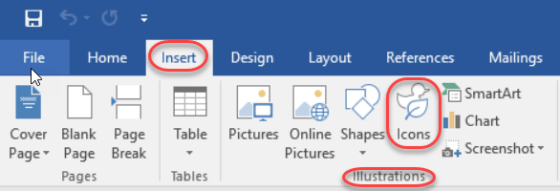
The new Icons feature in Office ProPlus
This is one of those things that was easy to overlook in all the new features in Office ProPlus (aka Office 2016), and that’s the new Icons feature in the Insert section of the Ribbon Bar. In fact, when it first rolled out, it really didn’t work very well as it was trying to pull the icons from a 3rd party site (or so it appeared), and I couldn’t get any of them to load. But now it’s working fine. Here’s how you can use them…
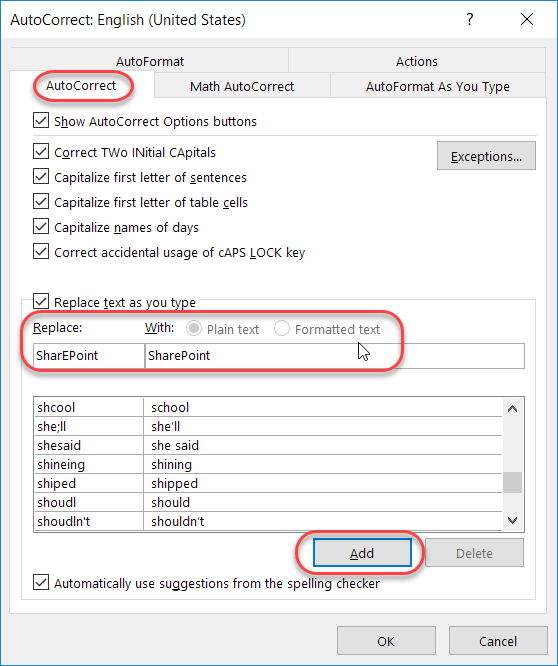
Fixing unintended auto-corrects in Office
Generally speaking, the Auto-Correct feature in Microsoft Office is great in fixing your typing mishaps. But depending on the industry you work in, there are certain acronyms that are constantly mistaken by Auto-Correct as misspellings. Here’s how you can fix that…
Fixing your quirky spelling errors in Office
Admit it… you have a few(?) words that you always misspell or mistype when working on a Word document, a PowerPoint deck, an Excel file, a OneNote notebook, or an Outlook email. And, for whatever reason, the program decides that your quirky spelling isn’t important enough to fix for you automagically. Well, you can actually add your own spelling quirks to Office so that you don’t have to wear out the backspace key fixing your errors. And yes… this is a case where you can fix it once, and *all* the programs will pick up the change!
The “Tell me what you want to do” feature in Office 2016
There’s no question that Word, Excel, PowerPoint, and Outlook have a ton of functionality. However, sometimes it’s nearly impossible to remember or find the right menu option to trigger it. In Office 2016, there’s a new feature called Tell me what you want to do. It is a lifesaver in finding what you need to know when you need to know it.
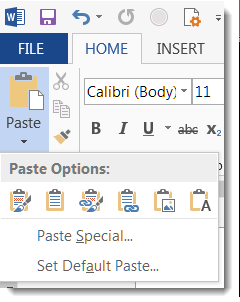
Various Copy/Paste options between Excel and Word
On more than one occasion, I’ve been in the position of having some data stashed in an Excel spreadsheet, but I need to have it be part of a Word document. I could give my audience two files to see everything, but I really want to have everything in a single Word document… What to do?
Instead of just copying and pasting some cells from Excel into Word, I can use the Paste button dropdown to get some interesting options on how the data will show up in Word.
Customizing AutoCorrect in Office programs
I think AutoCorrect in the different Office programs (such as Word, Excel, and PowerPoint) is a lifesaver when it comes to creating documents with no (or fewer) typos.
What you may not know is that you have the ability to do a lot of customization in AutoCorrect in order to make it work best for your particular situations.
Changing the Office Theme colors
So are you tired of the normal color background and theme of your Office apps, such as Outlook, Word, Excel, PowerPoint, and OneNote? Well, you can change them, and here’s how you do it.
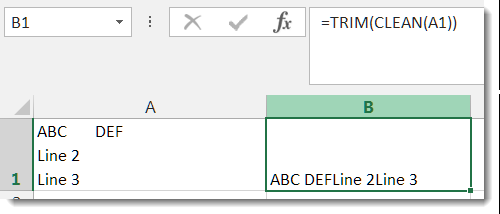
Cleaning spaces and line feeds in Excel
A while back, a colleague pinged me and asked if there was a way to remove line feeds from an Excel spreadsheet. I didn’t know of a good way to do it, but I came up with a hack-ish solution using Find and Replace. Unfortunately, I didn’t know about the Trim and Clean functions at the time.