OneDrive is a great repository for all your files that you have stored on your computer, but it can be really hard to find that particular picture or video stored on your OneDrive if you don’t know the exact search terms. Now you can “filter” your OneDrive content to only show you your media files, such as pictures or videos. Here’s how easy that is…

Tag: OneDrive for Business
Marking favorite documents for referencing in OneDrive
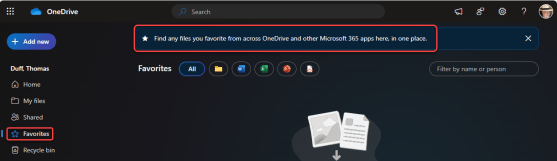
Throughout OneDrive and SharePoint, you probably have a number of “favorite” documents that you reference on a regular basis. But how do you keep them in a place where you can easily reference them on an ongoing basis? You can use the Favorites feature in OneDrive to “bookmark” those documents in a single list to refer back to them when needed. Here’s how that works…
Finding OneDrive files by person or meeting
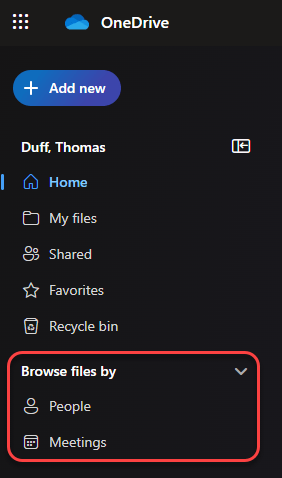
When you’re looking for a file that’s been shared with you in OneDrive, it’s not uncommon to struggle on the name of the file, but remember who shared it with you or what meeting it was part of. Now you can search for files by person or by meeting in OneDrive, making it easier to find that file that is hiding from you. Here’s what that looks like…
OneDrive now has photo editing capabilities
If you have images stored in OneDrive, it’s now easier than ever to do basic image manipulation to make them look perfect for your site. OneDrive has a new set of photo editing features, and here’s how they work…
Cleaning up document libraries in SharePoint Online using Preview
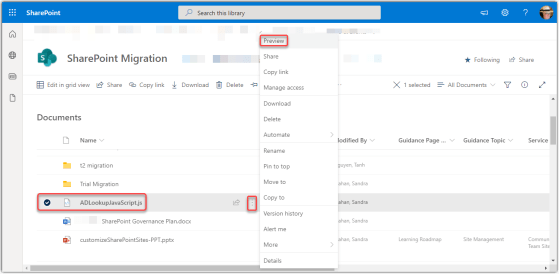
Sandra Mahan just blew my mind with a feature in SharePoint Online that makes cleaning up document libraries *so* much easier… the Preview feature. It’s probably been there for a long time, but neither of us had really used it before. Here’s how it works…
First delete dialog alert for OneDrive files
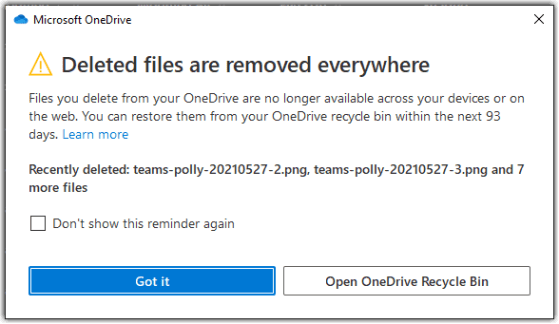
When you delete files on Windows or on a Mac that are synchronized to your OneDrive area, it might not be intuitive that those deleted files get deleted *everywhere*. Microsoft now gives you a heads-up on what is happening, as well as an easy way to get to the OneDrive Recycle Bin. Here’s what it looks like…
Maximum file size for OneDrive and SharePoint Online is now 250 GB
Due to customer requests to increase file size upload limits, Microsoft now allows uploads of 250 gigabytes (GB) (up from 100 GB) in OneDrive for Business and SharePoint Online.
Having said that, please do not look at this as a challenge…
Moving and copying files in OneDrive and Microsoft Teams
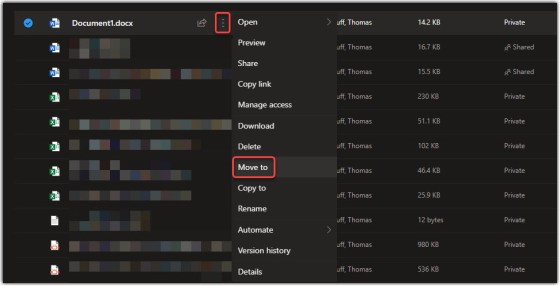
If you’re using OneDrive to create documents and files before you’re ready to share them with a larger audience… great job! Now that your document is ready to be shared, you can use the built-in Move and Copy options to get that file out to a SharePoint site without any hassles. Here’s how that works…
Creating and saving files directly in SharePoint Online and OneDrive
If you’ve been working with computers prior to “the cloud”, it’s very easy to have your behavior default to saving your files to your local hard drive or a file share. However, now with SharePoint Online and OneDrive, doing that limits the opportunities you have to work with the files in new and collaborative ways. Instead, start creating and saving your files directly to SharePoint document libraries or your OneDrive space. Here’s how that works…