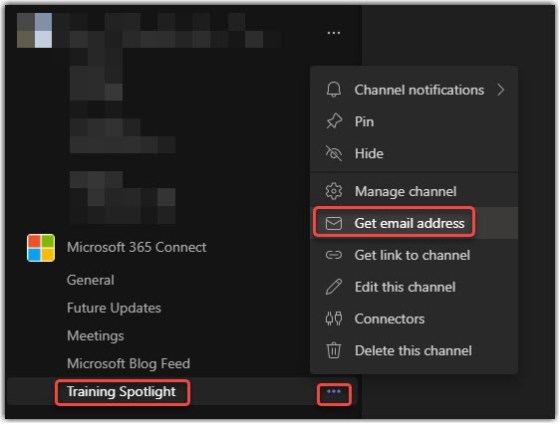
As you may know, every Microsoft Teams space has a SharePoint site attached to it in the background. All your files that you post in a Teams channel get stored in the backend SharePoint site in the Documents library, and the folder that they’re stored in matches the name of the Teams channel. However, if you’re just looking at the SharePoint Documents library, you may not know which folders are connected to Teams channels. Now there’s an indicator that makes that more obvious. Here’s how that works…
Tag: Microsoft Teams
Muting Microsoft Teams notifications during a Teams meeting
When I’m trying to monitor the chat in a Teams meeting, I find it highly frustrating that the pop-up notification banners end up overlaying the area where I’m trying to type in a chat response. All I want is a way to stop the notifications for a particular meeting I happen to be in. Now I have a way to mute those notifications. Here’s how that works…
Pinning a chat message in Microsoft Teams
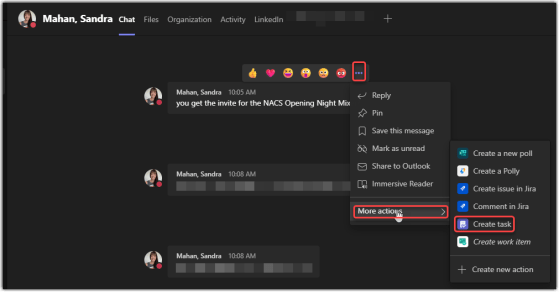
When you’re in a busy one-on-one or group chat, there’s a chance that an important message might scroll off the screen before you have a chance to see it and reply. You now have the ability to pin a chat message to the top of the screen where it will remain until it’s unpinned or replaced. Here’s how that works…
Increasing your chat density in Microsoft Teams
If you’ve been using Teams for a while, you may feel somewhat frustrated that the amount of “white space” in Teams chat seems to take up a lot space that could be used to display more content without scrolling. Teams now has a Compact setting for chat density that can help that. Here’s how it works…
Reply to specific chat messages in Microsoft Teams
have lost the context behind your latest chat entry. Teams now has a feature that allows you to reply to a specific chat entry and keep the context of what you’re responding to. Here’s how that works…
Microsoft Teams search has a new look
It used to be when you searched for something in Microsoft Teams, you got the results in the Feed section, and you had to scroll through the feed to find what you were looking for. Now, the search results are in the main display area, conveniently broken out by People, Messages, and Files. Here’s what it looks like…
Chat bubbles in Microsoft Teams meetings
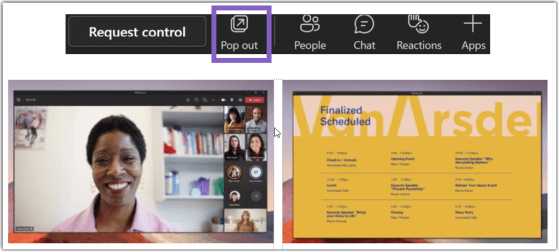
I find that it can be difficult during a Teams meeting to keep track of attendees, videos, and most of all… chat. However, Teams meetings now have a new feature called Chat Bubbles that makes it easier to see new messages without having to direct your attention somewhere else. Here’s how it works…
Setting the default open method for files in Microsoft Teams
If you open files in Microsoft Teams, you may have noticed that they might open in the browser, in the desktop client, or directly in Teams. I didn’t know you could actually control your default method for opening files in Teams, but Jennifer Andre shared a way to do that which blew me away… and now I’ll share it with you. Here’s how it works…