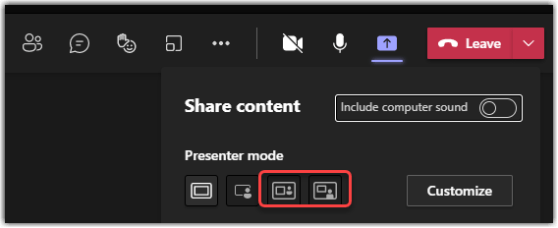
Microsoft continues to come up with new ways to allow presenters to show their content and, if desired, the presenter at the same time. The latest changes along this line are the Side-by-Side and Reporter presenter modes in Microsoft Teams. Here’s how they work and what they look like…
Category: Microsoft Teams
Designating a correct answer in a Microsoft Teams poll
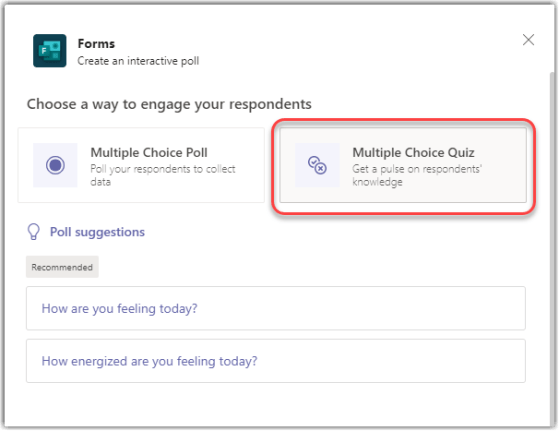
Microsoft Forms is a great way to poll your audience in a Microsoft Teams meeting. Now there’s a feature that also allows you to select a correct answer in a Poll question so that people know if their answer was right. Here’s how that works…
Editing a SharePoint page or news post in Microsoft Teams
If you have tabs in your Microsoft Teams space that show SharePoint pages or news posts, you can now edit those pages from directly within Teams. Here’s how that works…
Adding Tasks from a Microsoft Teams chat or channel
If you’re running the latest version of Microsoft Teams, there is a feature that is awesome for making sure you follow up on items that show up in a chat or a channel conversation. You can now create Tasks from chat and channel conversations, and they can show up in your Tasks app in Teams. No more missed or forgotten items! Here’s how it works…
Using PowerPoint Live in Microsoft Teams
It used to be when you were presenting in a Microsoft Teams meeting and had a PowerPoint slide deck, you had to share your screen, start up PowerPoint, and start the presentation on your computer. Everyone saw the same thing you saw, and you didn’t have any ability to jump ahead or annotate a slide without everyone watching you stop the presentation to look for the next slide. However, now we have PowerPoint Live, which makes presenting a PowerPoint slide deck much easier. Here’s how it works…
Sending Microsoft Teams notifications to Windows notifications
Depending on how you prefer to work, you might want to consolidate all your system notifications into the Windows notification area (the notification icon in the Windows task bar). Now Microsoft Teams will allow you to set your notifications to go to that area instead of showing up in Teams. Here’s how that works…
Sharing Emails to Microsoft Teams
We’ve all been there… Someone sends out an email to a group of people, and pretty soon there are a number of replies coming in, none of which have all the information due to people replying at different times. Wouldn’t it be nice if you could take that email and move it into a Teams chat or channel where everyone can discuss the original email and everyone sees everything to date? Now you can… using the Share to Teams button in Outlook! Here’s how it works…
Moving and copying files in OneDrive and Microsoft Teams
If you’re using OneDrive to create documents and files before you’re ready to share them with a larger audience… great job! Now that your document is ready to be shared, you can use the built-in Move and Copy options to get that file out to a SharePoint site without any hassles. Here’s how that works…
Using the Microsoft Teams SharePoint Tab to add pages, lists, or document libraries
As you consolidate more of your work (and your work day) in Microsoft Teams, it’s a good idea to make as much content as possible available within Teams so you don’t have to search somewhere else for it. The SharePoint Tab in a Microsoft Teams workspace now allows you to show lists and libraries of SharePoint sites in addition to individual pages. Here’s how that works…