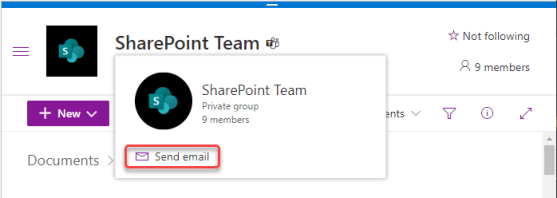
Sandra made a *huge* discovery the other day when it comes to trying to email all the people who are part of a Microsoft Teams workspace. Up until now, we’ve been recommending that people use a distribution list and that they manually keep it in sync with the members of the Teams space. Very cumbersome, but we didn’t have a good way around that… until now. Here’s how you can use a single email address to notify everyone in a particular Team, and even invite them to meetings…
Tag: Microsoft Teams
Dedicated Raise Hand button in Microsoft Teams meetings
Raising your (virtual) hand in a Teams meeting is a great way to let the moderator know that you have a question or comment. However, the button to do a hand raise was sort of buried in the menu and wasn’t very intuitive. Microsoft made some user interface changes, and now there’s a dedicated hand raise button on the meeting bar. Here’s what it looks like…
Using @Everyone in Microsoft Teams group chats
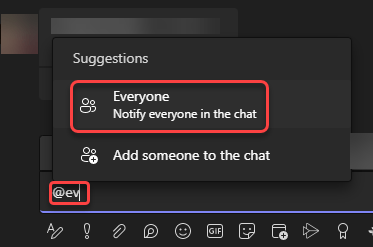
You’ve likely been in a Microsoft Teams group chat where you wanted to make sure everyone in the chat got pinged that there was a message there. However, trying to @ mention everyone individually is a major pain. Now, you can use @Everyone in a Teams group chat will get the notification ping that you sent a message. Here’s how that works…
Microsoft Teams calendar pop-out screens
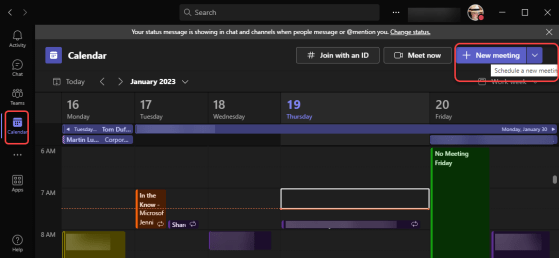
As you may have noticed over the years, Microsoft Teams tends to have anything you do appear on a single window, making it difficult to reference content from two or more sources at the same time. We’re now seeing a trend to allow users to “pop-out” a screen into a separate window so you can be viewing multiple content sources, such as with multiple chats. The latest addition to this is for Teams calendar entries, which now pop out the new meeting invite when you start to set it up. Here’s how that works…
Adding people to a Microsoft Teams chat by @ mentioning them
When you’re in a group chat in Microsoft Teams, you might find yourself wanting to bring a new person into the chat. While you can go to the upper-right corner, find the list of people in the chat, and add them from there, you can also add someone by just putting an @ symbol in the message area. Here’s how that works…
Leave a Microsoft Teams meeting on all your devices
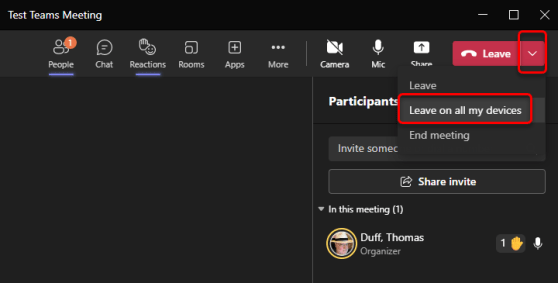
Microsoft Teams meetings are great in that you can join on one device (like your Teams desktop client) and then switch over to using your iPhone to listen to the meeting if you have to walk away. However, if you join the meeting from a second device (instead of switching devices), it can be hard to completely leave the meeting on both devices. Teams now allows you to leave a meeting on all devices when you’re ready to exit the meeting. Here’s how that works…
Deleting your chats in Microsoft Teams
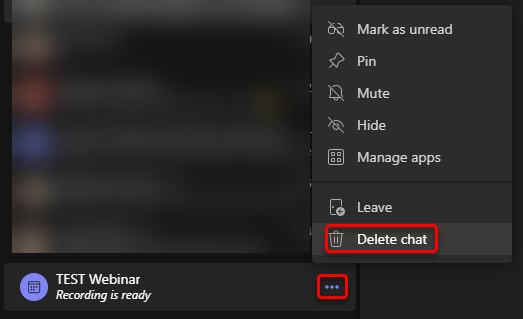
If you’ve used Microsoft Teams for any length of time, you know your list of chats can grow pretty long in a relatively short period of time. Trying to scroll through the list of chat to find one that you really want to look at can be a pain. Now, Microsoft Teams will let you delete chats in your chat list, and it only affects the chat on your own Teams client. Here’s how that works…
Delayed send on Microsoft Teams chat messages
This is a change that I’ve been waiting *months* for! You can now type a message in a Teams chat and choose to send it at a later date! This is great when you cover a number of time zones and you don’t want to have people responding to your messages during times when they might normally not be working. Here’s how it works…
Expanded Emoji Reactions in Microsoft Teams
Up until now, we’ve had the standard set of reaction emojis to use to convey how we feel about a particular chat message. However, there are times when you’d really like more options… and now you have them. Microsoft Teams has an expanded palette of emojis to meet all your non-word communication needs. Here’s how it works…