Unlike Word, Excel does not have a Watermark feature that you can select from a menu. However, there is a way to get a watermark effect in Excel, and it’s ideal for spreadsheets that have confidential information. Here’s how you do that…

Learning new Microsoft Office tricks in "just a minute"
Unlike Word, Excel does not have a Watermark feature that you can select from a menu. However, there is a way to get a watermark effect in Excel, and it’s ideal for spreadsheets that have confidential information. Here’s how you do that…

I recently had a question from someone asking if there was a way to take a column of names in Excel that were in all upper-case and convert them to proper case. In Word, it’s just a menu option, but that feature doesn’t exist in Excel. However, you can get there with an Excel formula. Here’s how…

If you have a spreadsheet that has a lot of column filters set, it can be laborious (and probably error-prone) to try and delete all the filters one at a time. But by using the CTRL – SHIFT – L keyboard shortcut, you can turn them all off at once. Here’s an example…
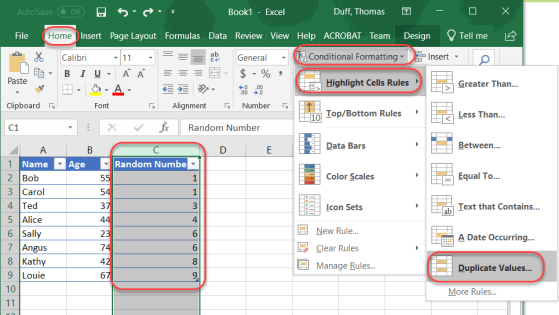
I was working with Sandra the other day on a project that involved an Excel spreadsheet and about 2400 lines of data. I had to check to see if I had any duplicate values in one of the columns. Since I’m not the sharpest tool in the drawer when it comes to Excel, I asked her if she could help me somehow find potential duplicates instead of me scanning through the list manually. I was duly embarrassed when she showed me just how simple that is… 🙂
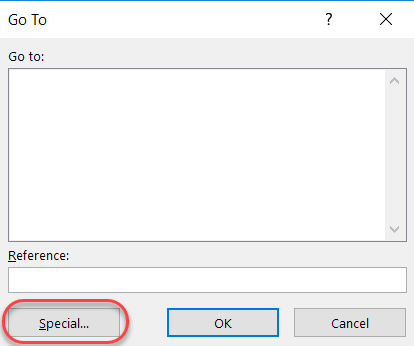
OK… I haven’t lost my mind here… It is very possible that if you have a large spreadsheet that has very little data in it, you might have a large number of blank rows in one of your worksheets. Each of those “blank” cells in the “blank” rows takes up space, and it can add up rather quickly when it comes to the overall size of your spreadsheet… let me show you how to fix that.

Today’s tip comes courtesy of Francis Hayes – The Excel Addict, where he explains how to simulate a “paper tape” function in Excel. For you young’uns who are confused by this concept… in the olden days, people used to add numbers on an adding machine, which often produced a paper tape as the numbers were entered. You would get a total, plus a visual list of numbers that got you to that total. You could then confirm that you entered everything correctly. Some habits die hard however, and here’s how you can do the same type of “paper tape” function in Excel.
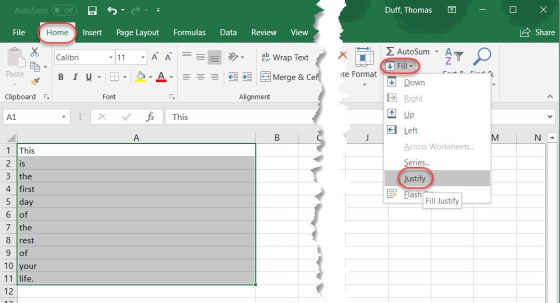
This is one of those tips you may not know about, but it will be a lifesaver if you only have to use it once. Using the Fill > Justify feature in Excel, you can concatenate data from multiple Excel cells into a single cell. It’s easy, and here’s how it works…

This is a cool feature that I was unaware of… you can use F4 to repeat a formatting function in Excel. I tried out the F4 repeat on a couple of cell formats, and it works pretty well. Here’s how…

Having done this tip gig for a number of years now, I don’t often find a tip that blows my mind. It’s even more rare that I find a tip that blows my mind, *and* has apparently been there for years. Today’s tip fits that bill… you can have up to 24 selectable Office Clipboard entries to choose from when you’re working in Outlook, Word, Excel, or PowerPoint. Even better is that they are shared across all those programs! Here’s how it works…
 One Minute Office Magic