Recently I talked about how to add and remove particular words and acronyms that Office “helpfully” tries to correct for you. In this tip, I want to point out a few other options that are interesting and might address a pain point or two based on how your fingers and your brain communicate with each other…
Category: PowerPoint
The new Icons feature in Office ProPlus
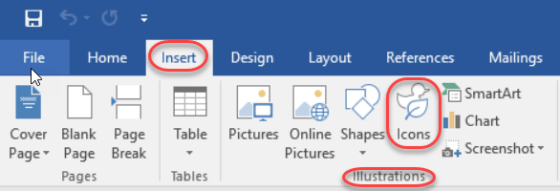
This is one of those things that was easy to overlook in all the new features in Office ProPlus (aka Office 2016), and that’s the new Icons feature in the Insert section of the Ribbon Bar. In fact, when it first rolled out, it really didn’t work very well as it was trying to pull the icons from a 3rd party site (or so it appeared), and I couldn’t get any of them to load. But now it’s working fine. Here’s how you can use them…
Fixing unintended auto-corrects in Office
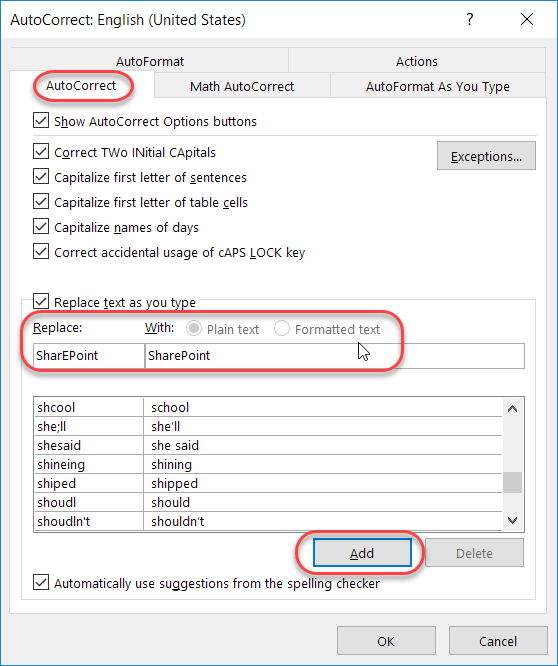
Generally speaking, the Auto-Correct feature in Microsoft Office is great in fixing your typing mishaps. But depending on the industry you work in, there are certain acronyms that are constantly mistaken by Auto-Correct as misspellings. Here’s how you can fix that…
Fixing your quirky spelling errors in Office
Admit it… you have a few(?) words that you always misspell or mistype when working on a Word document, a PowerPoint deck, an Excel file, a OneNote notebook, or an Outlook email. And, for whatever reason, the program decides that your quirky spelling isn’t important enough to fix for you automagically. Well, you can actually add your own spelling quirks to Office so that you don’t have to wear out the backspace key fixing your errors. And yes… this is a case where you can fix it once, and *all* the programs will pick up the change!
The “Tell me what you want to do” feature in Office 2016
There’s no question that Word, Excel, PowerPoint, and Outlook have a ton of functionality. However, sometimes it’s nearly impossible to remember or find the right menu option to trigger it. In Office 2016, there’s a new feature called Tell me what you want to do. It is a lifesaver in finding what you need to know when you need to know it.
Customizing AutoCorrect in Office programs
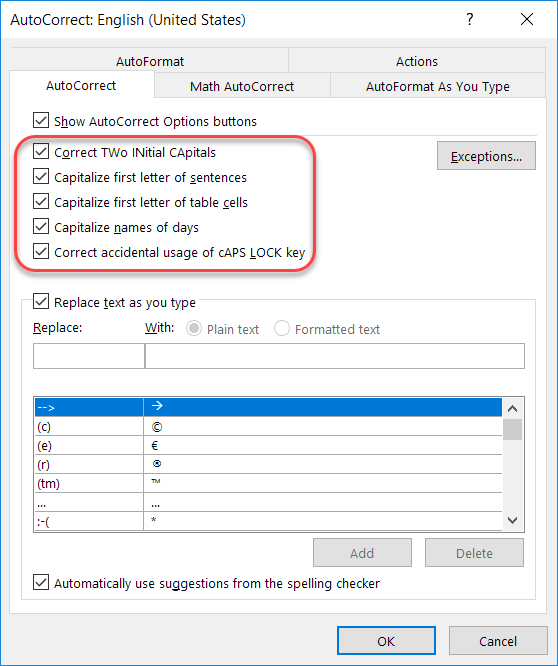
I think AutoCorrect in the different Office programs (such as Word, Excel, and PowerPoint) is a lifesaver when it comes to creating documents with no (or fewer) typos.
What you may not know is that you have the ability to do a lot of customization in AutoCorrect in order to make it work best for your particular situations.
Morphing slides in PowerPoint
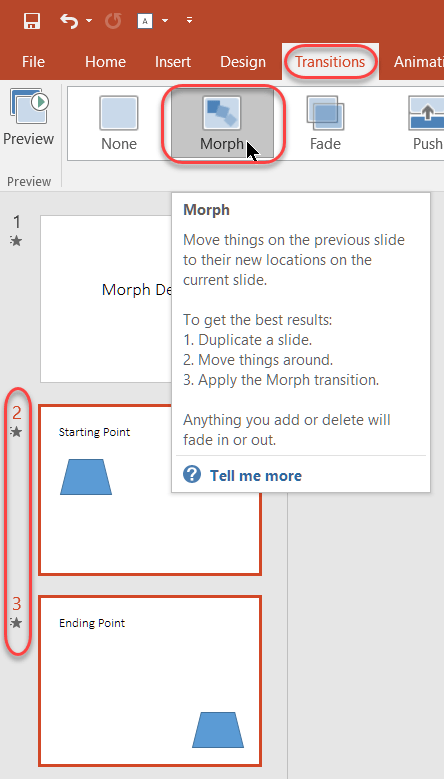
One of the cool newer transition features in PowerPoint is the Morph transition. If you haven’t tried it out, you may want to think about it.
Adding a Youtube video to a PowerPoint presentation
There have been times when I’d like to borrow some content from YouTube to make a point in a presentation… or just to have some opening music before the show starts. This tip shows you how to accomplish that.
Linking to other slides in a PowerPoint presentation
This tip is cool in that it 1) shows me something I didn’t know I could do, and 2) makes me think about different ways I could design a PowerPoint presentation. It’s possible to create hyperlinks in your PowerPoint presentation that point to other slides in the same deck.