If you’re like me, you tend to “bookmark” a lot of things to save for later. Of course, whether you actually get back to reading them is a different matter… The Saved For Later web part is a great way to flag content for later reading, and have it displayed back to you in an easy to read manner. Here’s how it works…
Author: oneminuteofficemagic
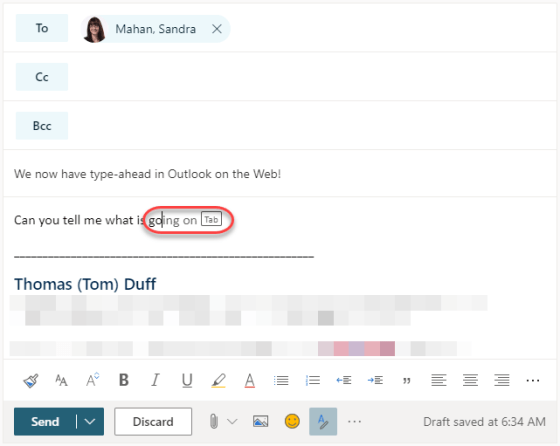
Outlook on the Web now has type-ahead suggestions
If you use a personal email client like Gmail, you’re probably used to seeing suggested wording appear as you’re typing away. Now Outlook on the Web has the same type-ahead suggestion feature! Here’s what it looks like…
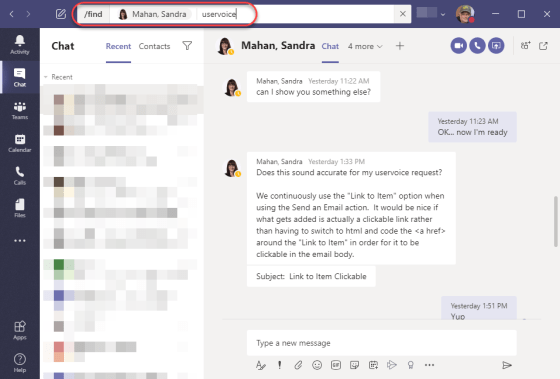
Contextual search in Microsoft Teams using CTRL-F
Being able to find certain words in a document using CTRL-F is one of the most useful features in applications like Word. That same ability now makes its appearance in Microsoft Teams. Here’s how it works…
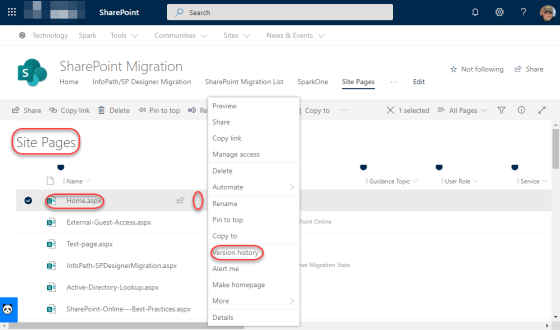
SharePoint page difference visualization for versioning
Versioning on list items and document library files works well, but versioning on pages has always lacked something in my opinion. The description of what changed wasn’t always helpful if you were trying to get back to a version of a page prior to changes. Now with the SharePoint page difference visualization feature in version history, it’s easy to see what version you need to restore. Here’s how it works…
Quick Polling with Outlook on the Web
There are many times when you want to take a quick survey via email for some topic… like what everyone might like for lunch. You can do that with the Quick Polling feature in Outlook on the Web. It’s very easy to use and gets you the answers you need with very little effort. Here’s how it works…
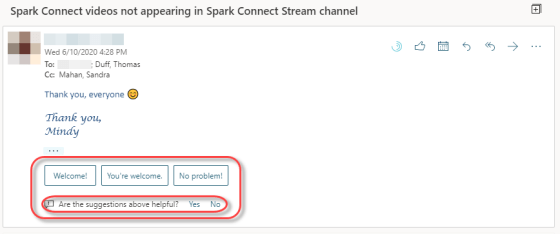
Suggested Replies for Outlook on the Web
If you’re used to using an email application like Gmail, you’ve likely seen (and used) the Suggested Replies feature, where short one-click answers are provided to speed up your email processing. Outlook on the Web now has that same feature, and it’s pretty cool. Here’s how it works…
Adding your own background images for Microsoft Teams meetings
Recently Microsoft Teams offered a standard set of background images for your Microsoft Teams meetings. You *could* add your own images, but it was more of a hack and wasn’t something you’d necessarily want to advertise. Now, there’s an easy way to do this, and here’s how it works…
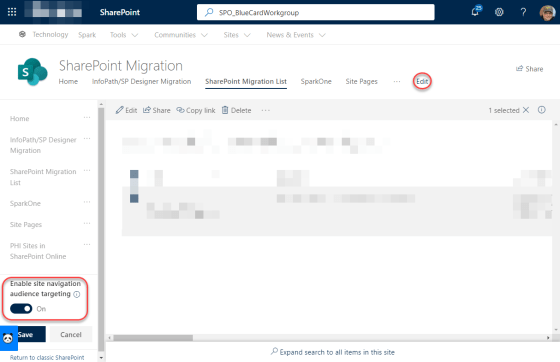
Audience Targeting in SharePoint Online navigation links
One of the latest changes to show up for SharePoint Online is the ability to have audience targeting apply to specific links in your navigation in Modern sites and pages. This means that you can have certain navigational links show up only to specific groups of people who are part of an Active Directory group. Here’s how it works…
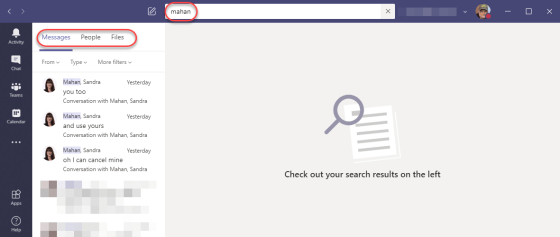
Searching in channels and chats for Microsoft Teams
While Microsoft Teams is a great way to keep information consolidated for your work, the capability to find things in various chats and channels has been somewhat limited. With the addition of enhanced searching in Microsoft Teams, that now becomes much easier. Here’s what it looks like and how it works…