Once of my colleagues pinged me today and asked if I could do a tip on how to set time zones in a Teams calendar. I’ve covered it a couple of times for Outlook, but the time zone settings for the Microsoft Teams calendar are separate from the Outlook settings. So… here’s how you add additional time zones in the Teams calendar…
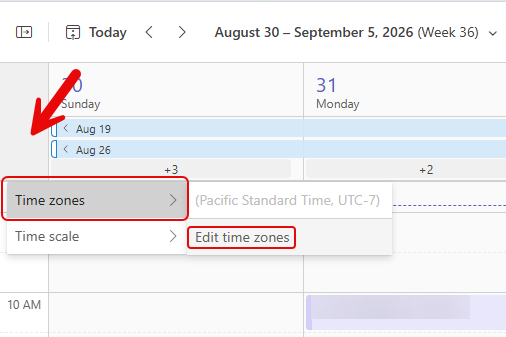
When you’re in your Teams calendar, right-click in the blank area above the times. That will open up a Time zones > Edit time zones option:
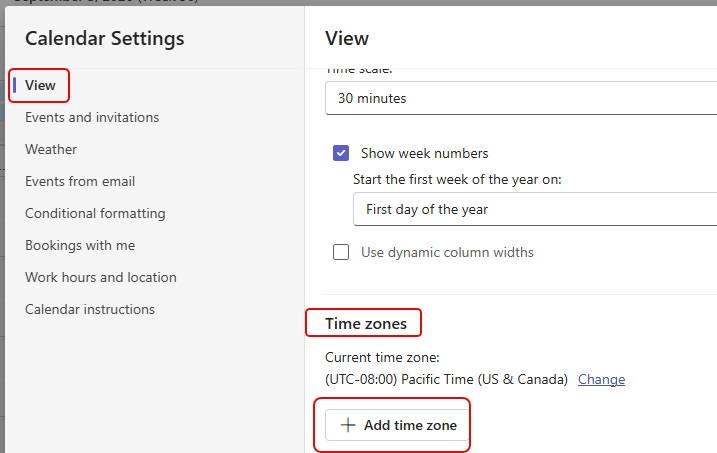
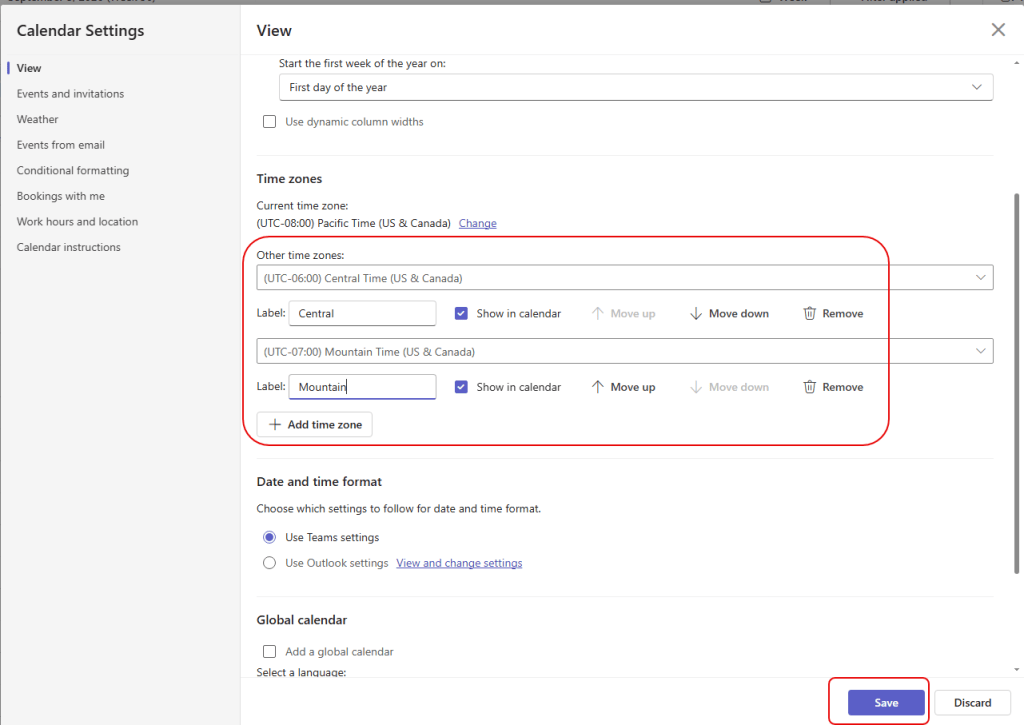
In the Calendar Settings, select View and look at Time zones. To add a new time zone, click the Add time zone button:
The Other time zone field will ask you to put in a city name. Pick a city that is in the time zone you’re adding. It will then convert to the time zone of that city, and you can add a label for that time zone:
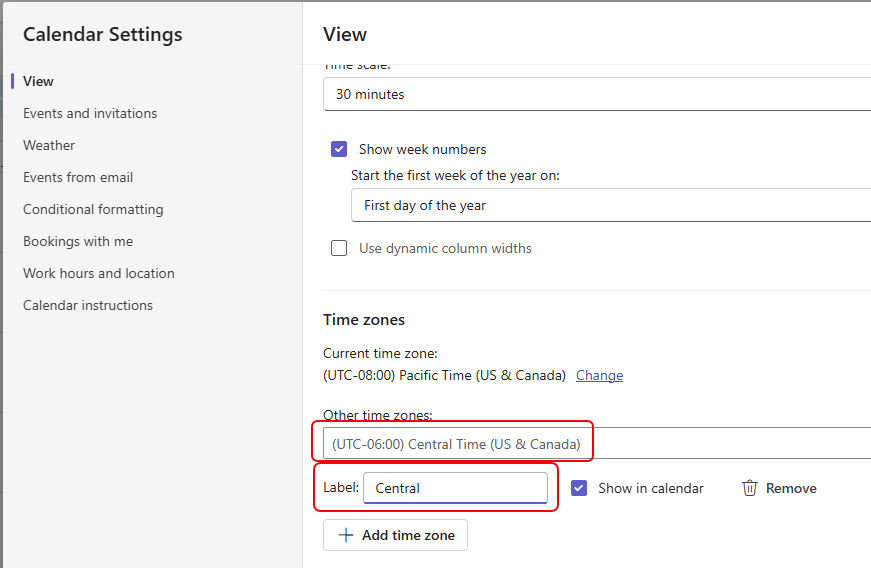
In this example, I added one more time zone so that I could see Pacific, Mountain, and Central time zones in my Teams calendar. To save the changes, click the Save button at the bottom of the screen:
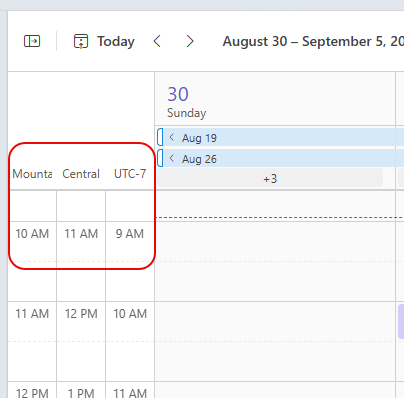
And now, you have all three time zones: