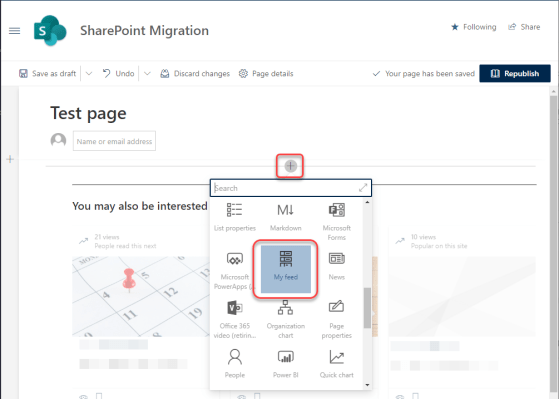
The My Feed web part for SharePoint Online pages is a great way to personalize a site such that people only see the most relevant content that they have access to. This is how it works…
Tag: SharePoint Online
Creating SharePoint Online lists from templates
As part of the changes for Microsoft Lists, there’s been a refresh on how you create new lists in SharePoint Online. One of the more interesting changes is a set of pre-defined templates you can use to get started on a new list. It’s a great starting point for building out a list that fits your needs. Here’s how it works…
The Org Chart Web Part in SharePoint Online
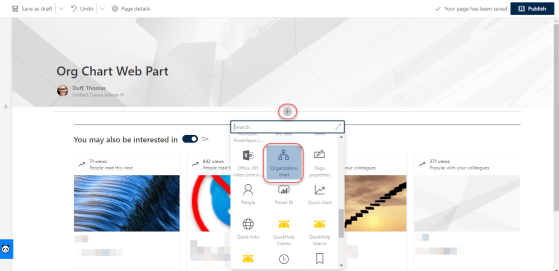
One thing I see frequently in department web sites is some sort of organization chart so that people know who the boss is and who all reports to them. This can be a PDF document, a Visio diagram, or some other cobbled-together image. Now you can add an org chart to your site using the Org Chart web part in SharePoint Online, and it’ll always be up-to-date! Here’s how it works…
Using the SharePoint Viewers Site Feature in SharePoint Online
I frequently get asked if there is a way to see who has viewed a particular document in a SharePoint Online library. I normally tell them that they can see how many people have viewed a document, but not the specific individuals. Now, you can activate the SharePoint Viewers site feature in SharePoint Online to get that very information. Here’s how it works…
Scheduling page publishing in SharePoint Online
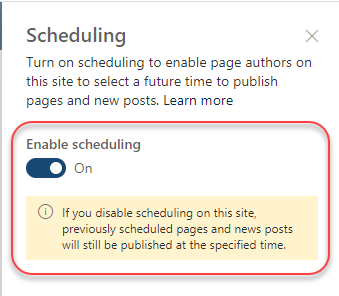
This is a feature that our organization has been asking for ever since we went live with SharePoint Online… the ability to schedule when a page should be published. If you have a Modern Page Library (often called Site Pages), it’s pretty easy. Here’s how it works…
Creating a new list from an existing list in SharePoint Online
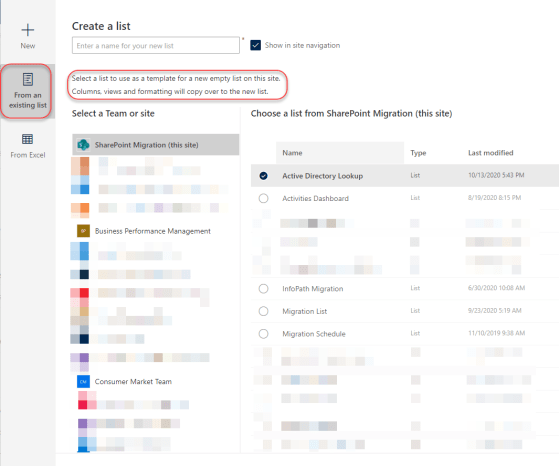
This is a feature I haven’t used as much as I should, as it would save me a ton of time. Even better, I can create new lists from lists in *other* sites, too! Here’s how it works…
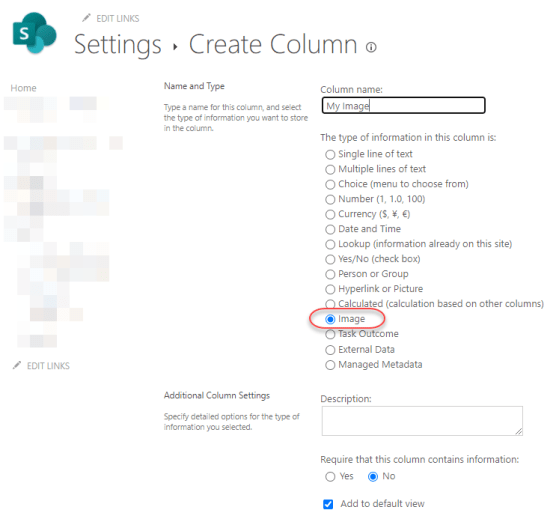
New Image column type in SharePoint Online Lists and Libraries
If you want to store an image as part of a SharePoint Online list or library item, you can now do that! Microsoft has added a new Image column type, and here’s how it works…
Expand/Collapse button in SharePoint lists
If you’re fortunate enough to work with a large-screen monitor, you may not have much of a problem with how much data displays in a SharePoint list. But if you’re on a laptop with a smaller screen, you might find that screen real estate is in short supply. You can gain a bit of that real estate back by using the Expand/Collapse button in SharePoint lists. Here’s how that works…
SharePoint Online List View formatting to make things pop…
So if you’ve been working with SharePoint Online for any length of time, you are used to views that show list data, but they don’t normally have any visual indicators that make important data stand out (unless you’re willing to dive into JSON formatting). However, now there are a number of out-of-the-box, menu-driven ways to make your important data stand out. Here’s some examples…