Microsoft Teams Compact Chat settings have been improved!

Microsoft Teams came out with a “compact” chat setting some time back, and it reduced the amount of white space between messages. However, I really didn’t like it as the time-stamp of the message didn’t display unless you hovered over it, and it was on the far side of the page. The recent changes to compact chat have fixed that and also hidden the message previews you see in the chat list. Here’s what that looks like…

Adding Pronouns to your Microsoft 365 profile

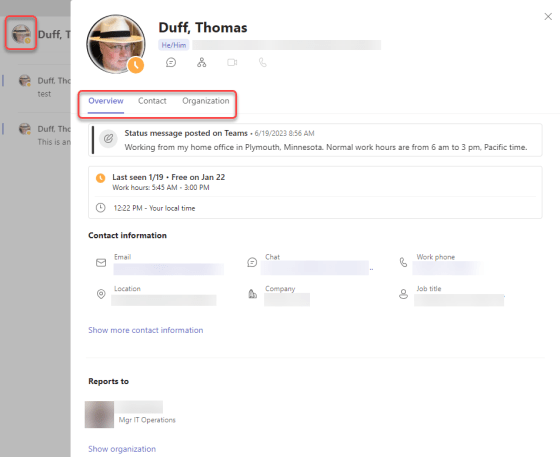
Just like our names, pronouns are extensions of our individual identity. You may have noticed that people are including their pronouns on email signatures and as part of their video conferencing identification; you can now include yours in your Microsoft 365 profile.  This information will appear in Outlook and Teams. Here’s how that works…

Ending a meeting in Microsoft Teams

I’m sure you’ve all experienced the “never-ending Teams meeting”… The organizer leaves the meeting, expecting the recording to show up momentarily. However, the recording never seems to show up. If you go back into the meeting (which should be over), you’ll find that one person who was off doing something else, and they’re still in the meeting… muted and causing the recording to go on and on and on… If you’re the meeting organizer, you can force the end of a meeting when you leave by using the End Meeting option. Here’s how that works…

Starting a Microsoft Teams chat with a distribution list

There’s probably been more than one occasion when you’ve wanted to start a group chat with a number of people, and all those people happen to belong to a certain distribution list. Instead of typing in each name individually to start the group chat, wouldn’t it be nice to just use the distribution list to populate the names? Well, now you can! Here’s how that works…

Emailing all the members of a Microsoft Teams workspace

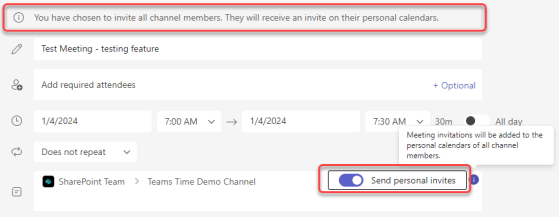
Sandra made a *huge* discovery the other day when it comes to trying to email all the people who are part of a Microsoft Teams workspace. Up until now, we’ve been recommending that people use a distribution list and that they manually keep it in sync with the members of the Teams space. Very cumbersome, but we didn’t have a good way around that… until now. Here’s how you can use a single email address to notify everyone in a particular Team, and even invite them to meetings…

Dedicated Raise Hand button in Microsoft Teams meetings

Raising your (virtual) hand in a Teams meeting is a great way to let the moderator know that you have a question or comment. However, the button to do a hand raise was sort of buried in the menu and wasn’t very intuitive. Microsoft made some user interface changes, and now there’s a dedicated hand raise button on the meeting bar. Here’s what it looks like…

Using @Everyone in Microsoft Teams group chats

You’ve likely been in a Microsoft Teams group chat where you wanted to make sure everyone in the chat got pinged that there was a message there. However, trying to @ mention everyone individually is a major pain. Now, you can use @Everyone in a Teams group chat will get the notification ping that you sent a message. Here’s how that works…

Microsoft Teams calendar pop-out screens

As you may have noticed over the years, Microsoft Teams tends to have anything you do appear on a single window, making it difficult to reference content from two or more sources at the same time. We’re now seeing a trend to allow users to “pop-out” a screen into a separate window so you can be viewing multiple content sources, such as with multiple chats. The latest addition to this is for Teams calendar entries, which now pop out the new meeting invite when you start to set it up. Here’s how that works…