Episode 237 of the Microsoft 365 Pulse Roadmap webcast is now out on YouTube. Join Tamara Bredemus and myself as we cover this week’s updates.

Learning new Microsoft Office tricks in "just a minute"
Episode 237 of the Microsoft 365 Pulse Roadmap webcast is now out on YouTube. Join Tamara Bredemus and myself as we cover this week’s updates.

Have you ever run across a message in a Teams channel and wish you could forward that content to another channel in Teams without having to copy and paste? Now you can by using the Forward feature in a Teams message. Here’s how that works…
Episode 236 of the Microsoft 365 Pulse Roadmap webcast is now out on YouTube. Join Tamara Bredemus and myself as we cover this week’s updates.
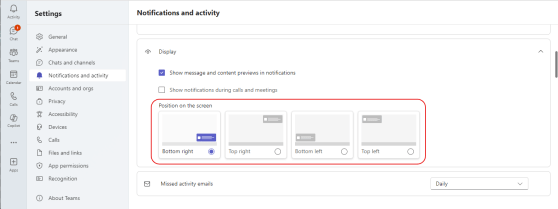
Here’s a new feature (currently rolling out in Teams) that people will probably like… When you get the Teams pop-up notifications for things like chat messages, they always show up in the lower right corner of your screen. Now, you have the option to choose which screen corner they’ll show up in! Here’s how to change your locations…

If you get a phone call in Microsoft Teams and you use the default system greeting, there’s a recent change that gives you a bit more confidentiality for external callers. Here’s what’s going on…

Episode 235 of the Microsoft 365 Pulse Roadmap webcast is now out on YouTube. Join Jennifer Mason, Tamara Bredemus, and myself as we cover this week’s updates.
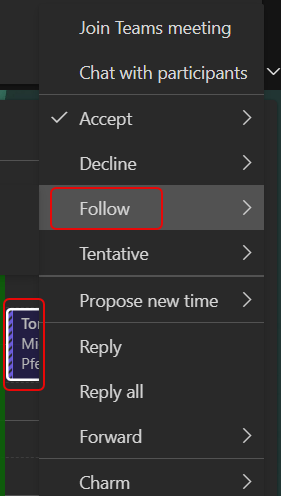
In today’s world of too many meetings, you likely find yourself double- and triple-booked all day long. You feel like you have to accept all the meetings as they are important and you want to keep track of things, but it turns your calendar into a nightmare, and the organizer doesn’t know whether you truly will or will not be there. Now, you can use Outlook on the web (or the New Outlook for Windows client if you’re using that) to RSVP with a Follow option. Here’s what that looks like and how it works…

We just received word (pun sort of intended) that the Designer in Word (for the web-based version) will be retired on March 31, 2025. This is a heads-up that if you use this particular feature, it won’t be available after that date. Following is the notice from Microsoft, as well as their recommendation on what to use instead…

 One Minute Office Magic