In Microsoft Teams, everyone loves their emojis and reactions. But in terms of “skin tone”, you were pretty much stuck with yellow. Now, you can set a skin tone for the hand gestures and people emojis that is more representative of who you are. Here’s how that works…
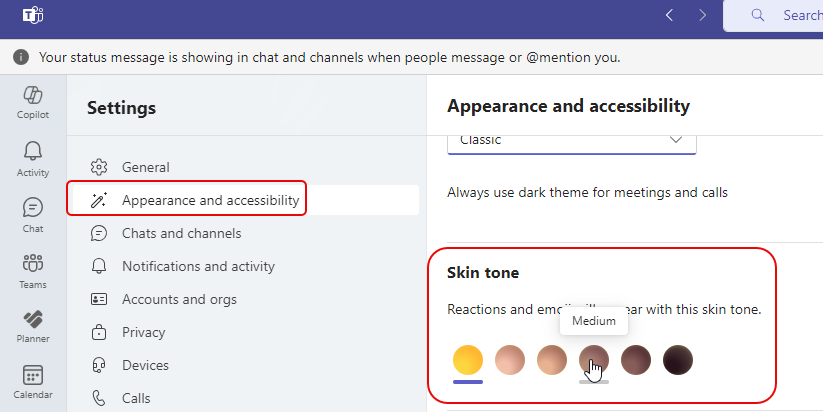
In Teams Settings, go to Appearance and accessibility > Skin tone, and pick one of the six skin tone colors that you’d like to use:
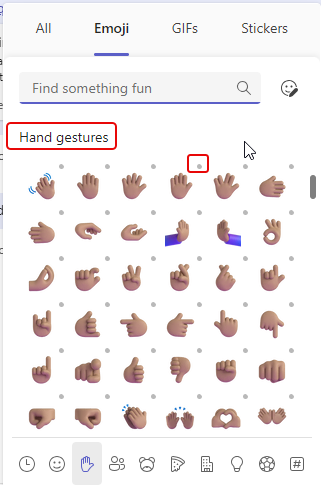
Now when you use Hand gesture emojis, they will be in the skin tone color you selected. Note that any emoji that has a small grey dot in the upper-right corner will use your selected skin tone:
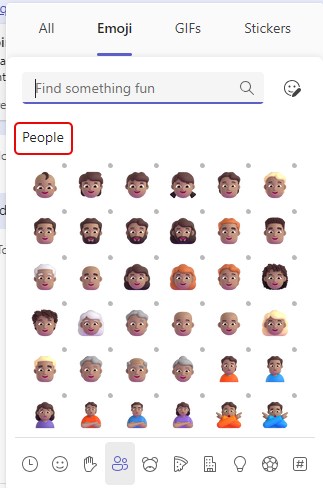
Same with the People emojis:
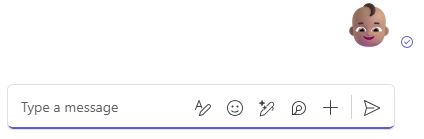
And when you select one of them in a chat or conversation, your chosen skin tone will appear in that emoji:
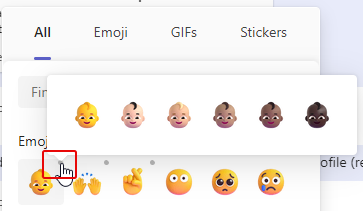
If you want to do a one-time change to the skin tone of an emoji that has the grey dot on it, just right-click on the grey dot. The six skin tone versions will show in a pop-up box, and you can select which one you want to use: