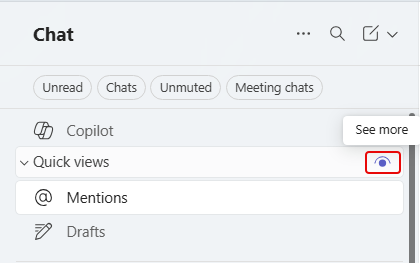
Microsoft made a change to the Quick Views area for chats. By default, those quick view categories only show up if there’s an unread item that qualifies for one of the categories. If something like @Mentions has no unread items, it doesn’t show up. However, you do have the option to change that on each of the chat quick views. Here’s how you do that…
With the Quick views expanded, I see two of the three items that should be there. I can see all of them by hovering over Quick views and clicking on the eye icon:
The eye icon shows me that I also have the Saved Quick View that isn’t showing up as there are no unread items there:

Now why am I seeing Mention and Drafts although they have no unread items? Because you can hover over the quick view to see an ellipsis. Click on the ellipsis and you have the ability to set the Quick View to Always show up, or to only show When unread:
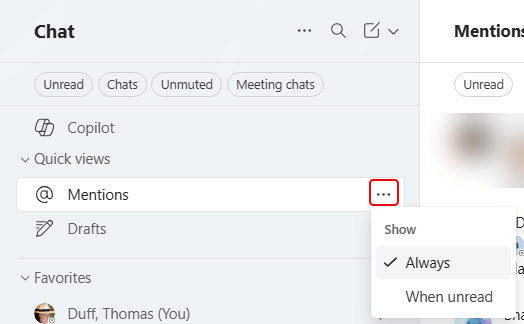
If you want as much room as possible in your navigation list, you should make sure they are all set to When unread, and you will maximize the navigation space available.


