
Did you know you can drag and drop an email from Outlook into a SharePoint document library? This is a feature I really like, as it allows me to store relevant emails in a document library that is being used as a project repository. Here’s how it works…
Here I have Outlook and a SharePoint document library side-by-side. I click on one of my emails…

… and drag it over to a non-folder entry in the document library. I can see a faint outline of the email entry that I’m dragging over:

The email is then uploaded to the document library:
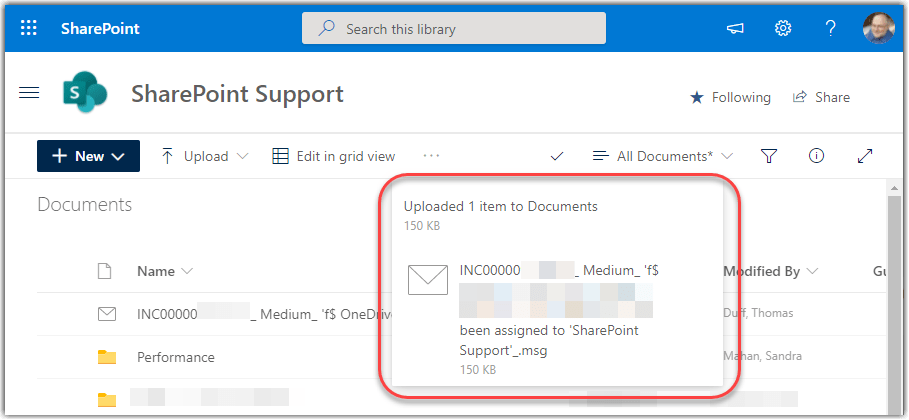
It appears as a .msg file along with an envelope file type icon:

If you drag it over a folder, you’ll see the folder outlined with a dashed line, and the email will be uploaded to that folder:

The email doesn’t get deleted from Outlook once you drag it over, so you don’t lose anything in your mailbox when you do this.

 One Minute Office Magic
Would be nice to have an option to open msg files in Outlook client
LikeLike
Hi Tom,
Thank you for post.
The reason I am reaching out to you is because of a situation that we are currently facing.
When we drag-n-drop an email to SharePoint, the email gets deleted in Outlook.
As a workaround we now tell our users to hold CTRL while dragging but we don’t understand why it is behaving like this.
We are 100% certain that it didn’t behave like this before.
Are you experiencing the same? Do you know a solution.
BTW. Microsoft servicedesk claims it works like intended.
Thanks in advance,
Geert
LikeLike
We are finding the exact same issue recently and agree never behaved like this before. Would be good to know if there is a solution as it is frustrating when you realise the email has been deleted.
LikeLike
Holding down ctrl and then using drag and drop works.
LikeLike