If you get a lot of email (and who doesn’t these days?), it’s easy for an important email to quickly get pushed lower on your screen, and eventually “disappear below the scroll.” In order to keep an important email front and center, you can pin the email to the top of your inbox using Outlook on the web. Here’s how that works and looks…
Tag: Outlook
Expand/Collapse conversations in Outlook on the web
It’s not uncommon to have emails that are grouped by conversation. However, it can be a pain to manually click on each email to expand it. If you’re using Outlook on the web, you can use the Expand and Collapse conversation button in the menu bar to make that a lot easier. Here’s how it works…
Using Chat from within Outlook on the web
Have you ever been reading an email and think that you really need to chat with that particular individual? That usually means switching over to Microsoft Teams to start the chat. But if you use Outlook on the web, you can start the chat from within Outlook! Here’s how that works…
Inserting files in Outlook Web emails by using a slash
In Outlook on the web, there’s a cool way to insert a file in the body of your email without having to search around for the option in the menu bar… just use a forward slash (/)! Here’s how that looks…
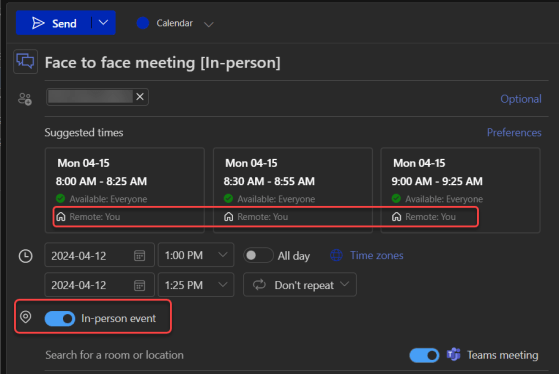
Meeting participants time-zone notifications
If your organization is spread out over multiple time zones, it can be hard to set up a meeting if you’re not aware of what time it might be for a particular group of people. Maybe a 4 pm meeting is good for you on the west coast of the US, but it would be 7 pm for those on the east coast. Now, if you’re using Outlook on the browser, you can see the attendee time zones when using the Scheduling Assistant. Here’s what that looks like…
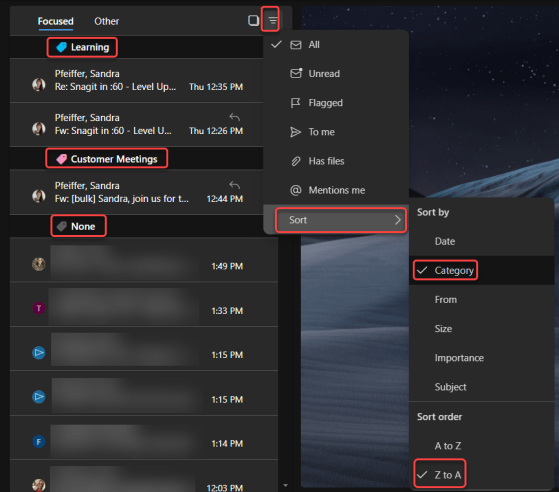
Sorting messages by Category in Outlook on the web
have found it frustrating that you couldn’t sort your Inbox by Categories. Well, now you can! Here’s how that works…
Showing Outlook calendar conflicts when RSVP’ing
hen you get a calendar invite in Outlook, it will show you if there’s a conflict with other things already on your calendar. If you’re using Outlook on the browser, you now can pop open a display of your calendar to easily see what those conflicts actually are. Here’s how that works…
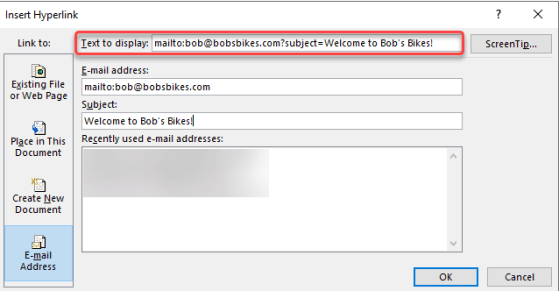
Automatically formatting a mailto link in an Outlook email
As you may be aware, you can create a clickable hyperlink that opens a new email automatically addressed to someone, along with a subject link. However, sometimes it’s a bit difficult to remember the format and syntax of the link. If you’re doing this in the Outlook client, there’s an easy way to get the link created and formatted properly without having to remember any of the parameters. Here’s how that works…
Showing declined meetings on Outlook on the web
If you’re using Outlook on the web, you have a new feature that can be very useful. You can now choose to have meetings that you decline show up in your calendar, but not mark that time as busy. This is great when you want to be able to get back to a meeting invite that may have files or agenda information that you need to view at a later time. Here’s how that works…