It seems like Microsoft likes to move the Copilot icon around in Word, Excel, and PowerPoint every few months. But a colleague of mine noticed an update that allows you three choices as to where that icon ends up. Here’s how that feature works and what it looks like…
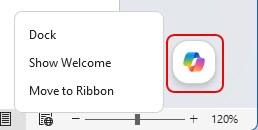
By default, you’ll find the Copilot icon in the lower-right corner. But if you right-click on the icon, you have the option to Dock it, Show the Welcome screen, or Move to the Ribbon bar:
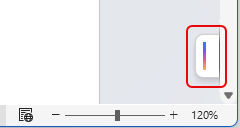
If you choose to Dock the icon, it appears as a small sliver in the lower-right corner. If you hover over it, the Copilot icon shows up so you can click on it. When you move away from the icon, it goes back to the docking behavior:
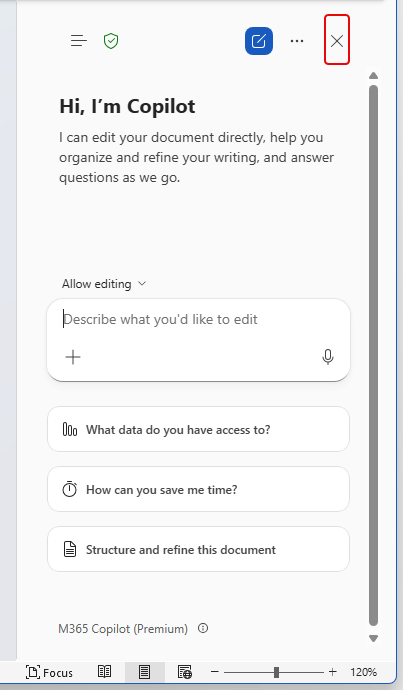
Choosing Show Welcome launches the right-side panel for Copilot. It will stay there until you click the X and it goes back to the icon:
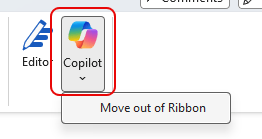
And finally, you can choose Move to Ribbon to get it completely out of the main work area of the application. If you want to go back to the regular Copilot icon, just click the dropdown arrow and select Move out of Ribbon:
This feature can be found in Microsoft Word, Microsoft Excel, and Microsoft PowerPoint… at least at the current time. 🙂


