This is a new feature that has been asked for on numerous occasions. Now in an Outlook meeting, you can copy the attendee list (and status) to your clipboard… or even export it to a CSV file! This should be out to everyone by late December, and here’s what you’ll see when it shows up…
If you’re looking at your calendar entry in Outlook on the web, you should see the Tracking panel over on the right. If you click on the ellipsis, you’ll see the options for Copy attendee names, Copy all tracking information, and Download as CSV:

If you select Copy all tracking information, this is what you’ll see when you paste it into something like Notepad. Doing this in the browser does not seem to include the organizer:

Copy attendee names does the same thing as above, but it only lists the names of the attendees:

And if you choose Download as CSV, this is what you see… again, it does not include the organizer:

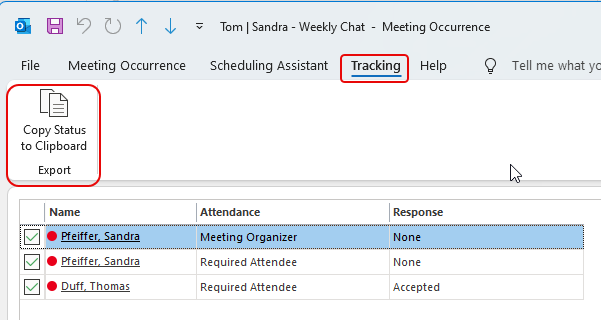
You can also do this in classic Outlook. When you’re in your calendar entry, go to the Tracking tab and click Copy Status to Clipboard:
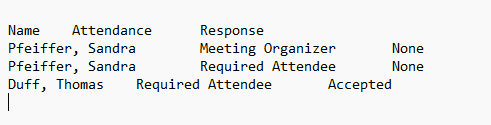
This is what you get when you paste the contents of the clipboard. Notice in this instance, you do get the organizer listed.

 One Minute Office Magic