
This may be a new trick for some of you… In the classic Outlook client, you can drag an email over to the calendar icon on the left-side navigation bar, and Outlook will automatically create a calendar entry using that email content. Unfortunately, you didn’t have that same ability if you were using Outlook on the web or the New Outlook client. Now you can! Here’s how that works using Outlook on the web, and you should be able to do the same in the New Outlook client…
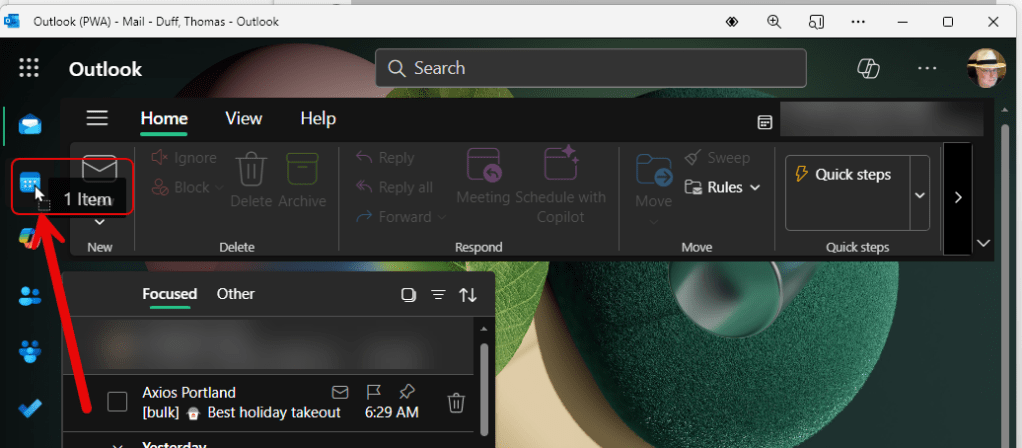
In this example, I want to create a calendar entry based on the Axios Portland email I received. I click on the email and drag it over to the calendar icon on the left-side navigation rail:
Outlook thinks about it for a few seconds, and then opens up a new calendar entry, putting in the entire email body into the body of the calendar invite. All you have to do now is add attendees, pick a date and time, and send it:
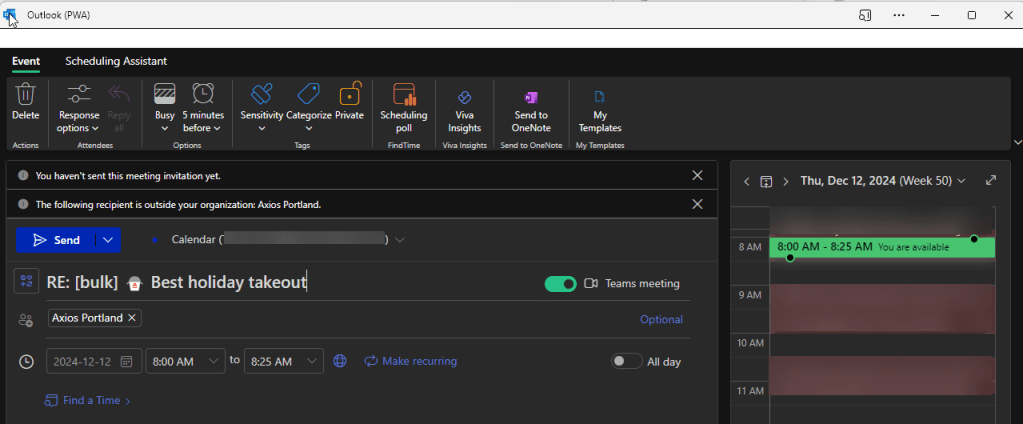
This is a great technique for quickly creating a meeting invite based on the content and context of an email, and to have that added into the body of the invite.

 One Minute Office Magic