Sorting pages in a OneNote section

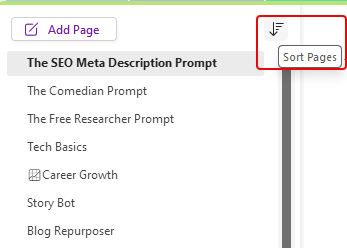
A question that is often asked is how to sort pages in a OneNote section. You can always drag and drop the pages in whatever order you want, and you can create new pages under an existing page by right-clicking on the existing page. But what if you want to sort the entire list alphabetically or by created order. You can do that by using the Sort icon at the top of the list of pages. Here’s how…

Having sub-subpages in OneNote

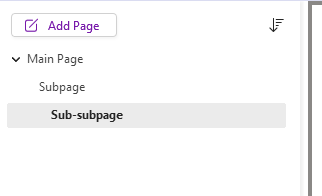
When you’ve been using a software package for a long time, you get set in your ways about what it can and cannot do. Somewhere along the way, I became certain that you could only have one level of subpages in a Microsoft OneNote section. I even told a group that during a demo. Someone was kind enough to let me know that you could make a sub-subpage! I wasn’t the only person on the call that wasn’t aware of that feature, so I’m sharing it here “just in case” you didn’t know it either…

Microsoft OneNote: The “me@onenote” feature will retire; use “Send to OneNote” instead

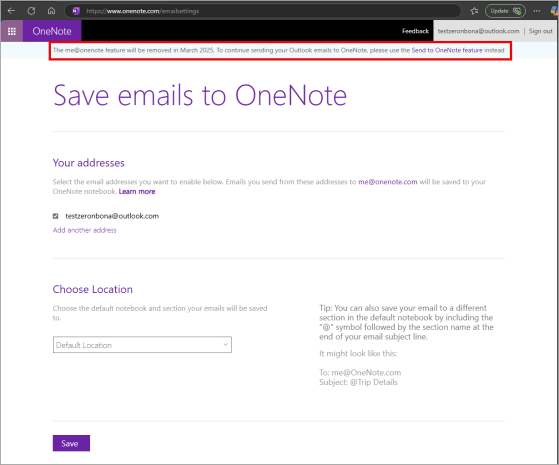
It seems we’ve been seeing a number of announcements for features that Microsoft is retiring. This particular one, “me@onenote” is one that I have to admit I have NEVER heard of, much less used. However, if you are smarter than me and figured this out at some point, you need to know that it’s going away as of March 26th, 2025. Here’s the announcement information from Microsoft…

Using Loop in OneNote

Microsoft Loop is a great way to collaborate with others on your content, as a Loop component can show up in multiple places (like Teams and an email), and everyone is seeing and updating the content in real time (regardless of where they are). One of the few places where you couldn’t use Loop is in OneNote, which is something that can be useful for things like taking notes in a meeting. Now, you *can* use Loop in OneNote! Here’s how that looks…

Creating wiki-style links in OneNote

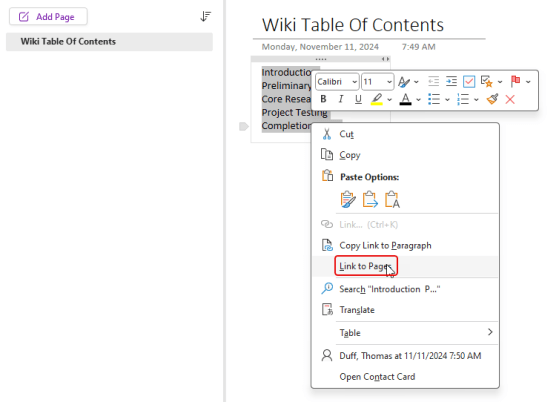
Many people like to use wikis to create quick “sites” for documentation that can easily reference other pages in the wiki. When I was looking at some online content, I noticed a tip that is great for setting up a “pseudo-wiki” in OneNote with very little effort. Here’s how that would work…

Pinning your OneNote screen to always stay on top

Yesterday I had a question from one of my customers asking why, after their laptop upgrade, OneNote always opened as a full screen on the monitor, and new applications would launch behind the OneNote screen. The only way they could see the other application was to minimize OneNote. I was completely unaware that there is an Always on Top setting in OneNote! Here’s where that is…