Many people like to use wikis to create quick “sites” for documentation that can easily reference other pages in the wiki. When I was looking at some online content, I noticed a tip that is great for setting up a “pseudo-wiki” in OneNote with very little effort. Here’s how that would work…
In one of my OneNote notebooks, I created a new section called Wiki Section along with a starting page of Wiki Table Of Contents. I then typed in the name of the “wiki pages” I wanted to create for a starting point:
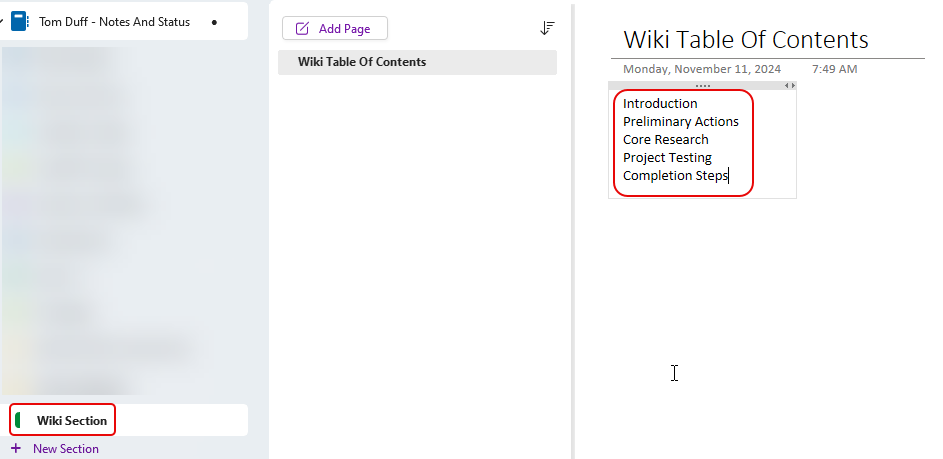
Rather than create each of those pages manually, I highlighted the pages and selected Link to Pages in the menu bar dropdown:

OneNote not only created each of those pages for me in the section, but it also created the wiki-style link to each of the pages!
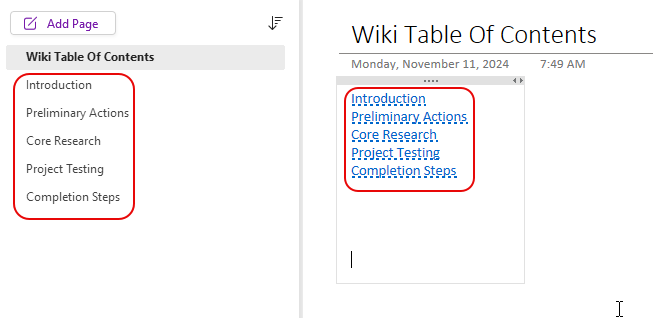
If you want to add additional page links, you can put the name of the new page in your content and put two square brackets on either side of the word or phrase… like [ [ and ] ], only without the space in-between the brackets. As soon as you do that, it will create a new page in that section. Also, if you want to reference one of those pages from somewhere else in the notebook, just put the name of the page in your text, and once again put the two square brackets on either side of the word/phrase. That will link to the existing page in the notebook. This linking does *not* work across notebooks. You can only use this type of wiki linking within a notebook.
Pro Tip… if you create a page in this fashion and then delete it, the page will likely end up in your OneNote Recycle Bin. If you try and create a new page with the same name, it’ll link to the deleted page, not the new one. You may want to go to History > Notebook Recycle Bin to clean out the deleted page so you can use that name again.

 One Minute Office Magic