Episode 195 of the Microsoft 365 Pulse Roadmap webcast is now out on YouTube. Join Jennifer Mason, Tamara Bredemus, and myself as we cover this week’s updates.

Learning new Microsoft Office tricks in "just a minute"
Episode 195 of the Microsoft 365 Pulse Roadmap webcast is now out on YouTube. Join Jennifer Mason, Tamara Bredemus, and myself as we cover this week’s updates.

This was a thing I don’t think I had ever noticed until Sandra pointed it out to me recently. There’s a way you can add vertical white space in a SharePoint page section without resorting to line feeds in a Text web part. You can use the Spacer web part for a precise level of control. Here’s how it works and looks…
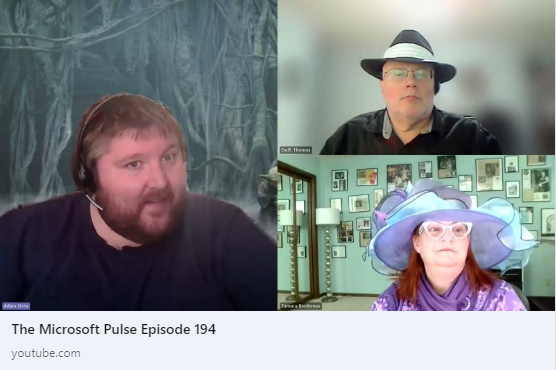
Episode 194 of the Microsoft 365 Pulse Roadmap webcast is now out on YouTube. Join Tamara Bredemus, Adam Ochs, and myself as we cover this week’s updates.
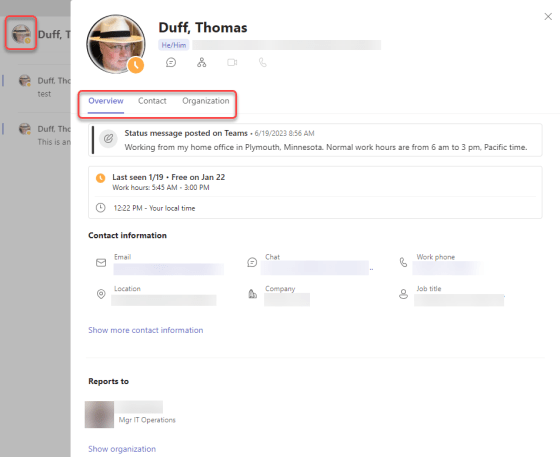
Microsoft has been working to provide more information on the Profile Card that appears if you click on someone’s picture in various Microsoft 365 applications. But while Outlook had the expanded Profile Card that showed the most information, Microsoft Teams wasn’t up to the same level. Now, you can click on a person’s profile picture in Teams and get the same expanded profile information that you’d find in Outlook. Here’s what it looks like…

If your organization is spread out over multiple time zones, it can be hard to set up a meeting if you’re not aware of what time it might be for a particular group of people. Maybe a 4 pm meeting is good for you on the west coast of the US, but it would be 7 pm for those on the east coast. Now, if you’re using Outlook on the browser, you can see the attendee time zones when using the Scheduling Assistant. Here’s what that looks like…
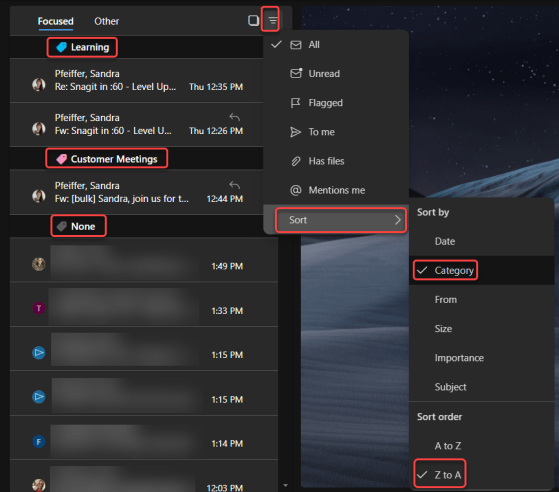
have found it frustrating that you couldn’t sort your Inbox by Categories. Well, now you can! Here’s how that works…

When you use the Text web part in a SharePoint page, the Table option in the web part has improved formatting and accessibility options. Here’s what they look like…

pisode 193 of the Microsoft 365 Pulse Roadmap webcast is now out on YouTube. Join Jennifer Mason, Adam Ochs, Tamara Bredemus, and myself as we cover this week’s updates.

hen you get a calendar invite in Outlook, it will show you if there’s a conflict with other things already on your calendar. If you’re using Outlook on the browser, you now can pop open a display of your calendar to easily see what those conflicts actually are. Here’s how that works…
 One Minute Office Magic