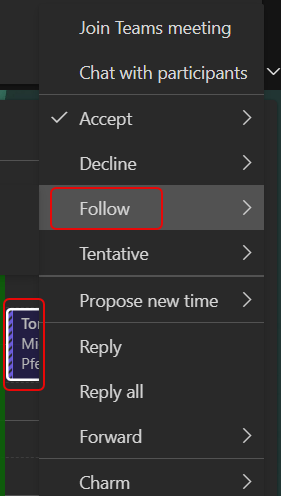
Using the Follow RSVP option in Outlook on the web

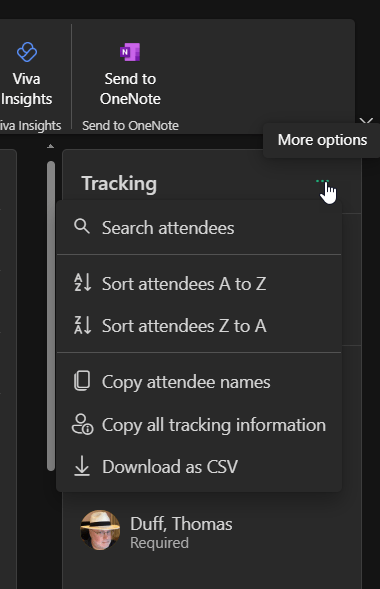
In today’s world of too many meetings, you likely find yourself double- and triple-booked all day long. You feel like you have to accept all the meetings as they are important and you want to keep track of things, but it turns your calendar into a nightmare, and the organizer doesn’t know whether you truly will or will not be there. Now, you can use Outlook on the web (or the New Outlook for Windows client if you’re using that) to RSVP with a Follow option. Here’s what that looks like and how it works…
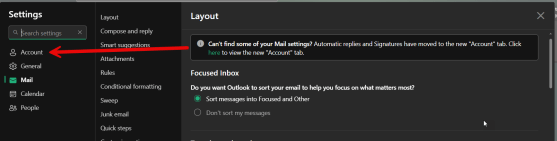
Outlook on the web – Changes to your Account Settings

When going to update some account settings in Outlook on the web, I noticed that certain things were missing in terms of where I normally would find them… such as the Automatic replies and Signatures. Turns out they’ve been moved from the Mail tab to the new Account tab. Here’s what that looks like now…

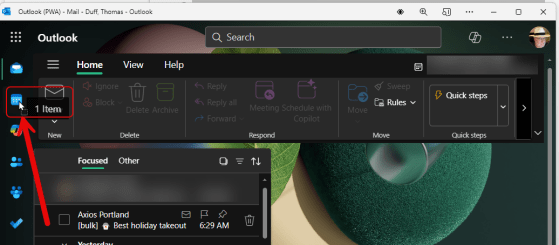
Creating an Outlook calendar entry from an email on Outlook on the web (and New Outlook)

This may be a new trick for some of you… In the classic Outlook client, you can drag an email over to the calendar icon on the left-side navigation bar, and Outlook will automatically create a calendar entry using that email content. Unfortunately, you didn’t have that same ability if you were using Outlook on the web or the New Outlook client. Now you can! Here’s how that works using Outlook on the web, and you should be able to do the same in the New Outlook client…

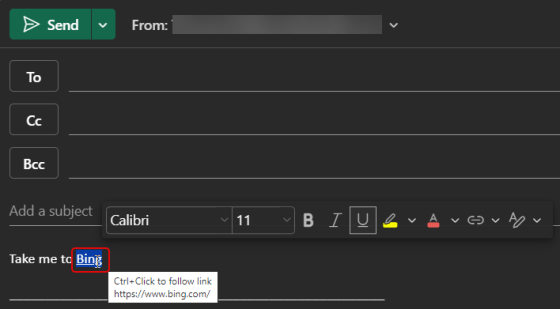
Creating hyperlinks in Outlook on the web

We ran across a cool little tip this week that pertains to Outlook on the web. Instead of having to click a hyperlink icon to add a link (or use CTRL-K to get a dialog box), you can just highlight the word in your email and paste the link over it… voila! You have a hyperlink! Here’s how that works…

Right-Click RSVP options for meetings in Outlook on the web

It used to be that if you were using Outlook on the web for your calendar and you wanted to RSVP a meeting invite, you had to either open up the calendar entry or navigation through an RSVP fly-out menu if you right-clicked on the meeting entry. Now, the Yes/No/Maybe options are available at the main level of the right-click menu. Here’s how it looks…