Planner is a great lightweight tool for managing projects, but I’ve often heard the request that people hate having to copy and paste a ton of stuff if they want to set up a new project using the layout of an existing Planner. You can now take that existing Planner and turn it into a template for setting up new Planners. Here’s how that works…
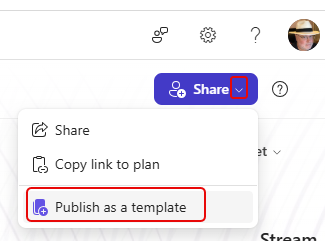
To create a template from an existing Planner, click the drop-down arrow in the Share button in the upper-right corner, and select Publish as a template:
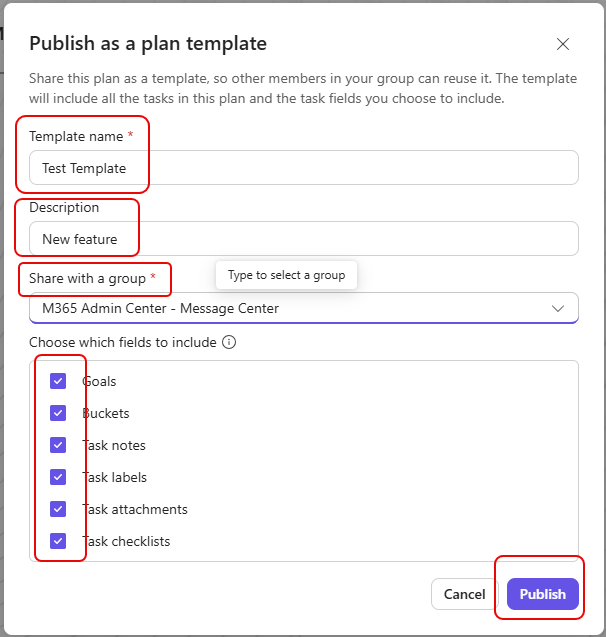
The Publish as a plan template dialog box comes up, and you can name the template, give it a description, share it with an existing group, and choose what elements you want to include in the template. Click Publish when you’re finished, and you’ll have a new Planner template to choose from:
For more details on how do to this, read this article: Use Custom templates in Microsoft Planner


