There have been a number of people looking forward to the Planner Agent in Copilot, and it’s finally available for all Planner levels! Here’s how to find it and a simple example of how to use it…
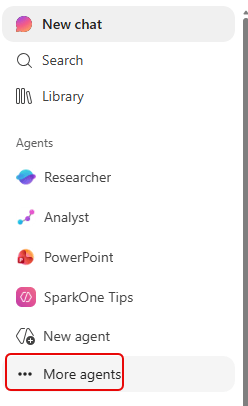
If you don’t already have it in your list of agents in the main Copilot page, click on More Agents to install it:
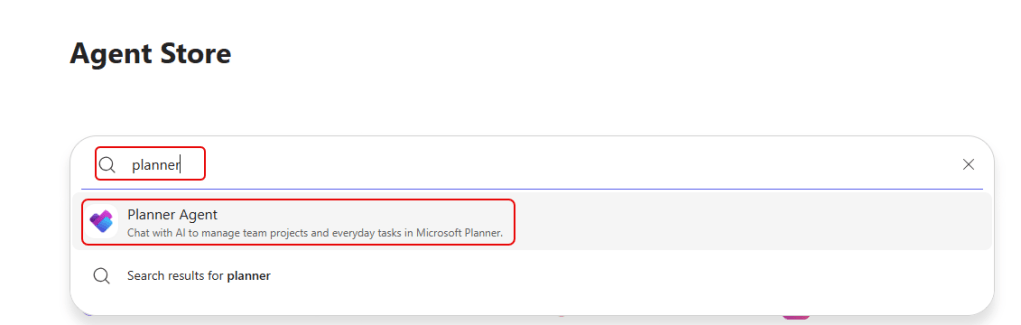
Look up Planner and select Planner Agent:
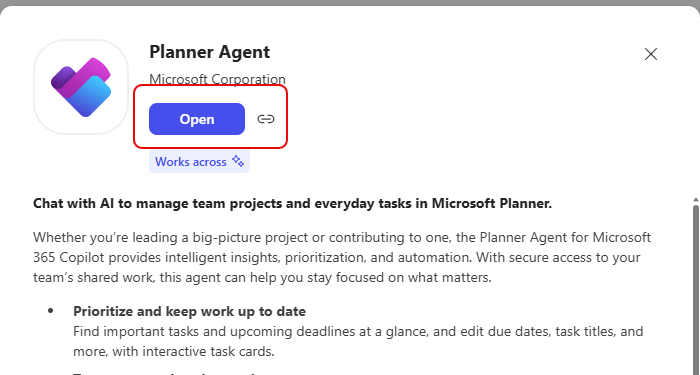
Click Open and it will be loaded:
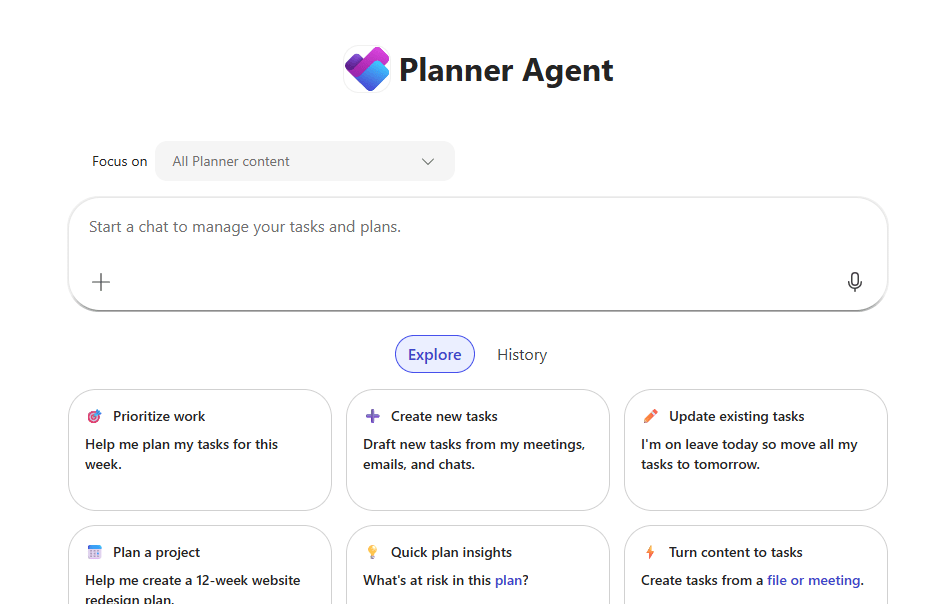
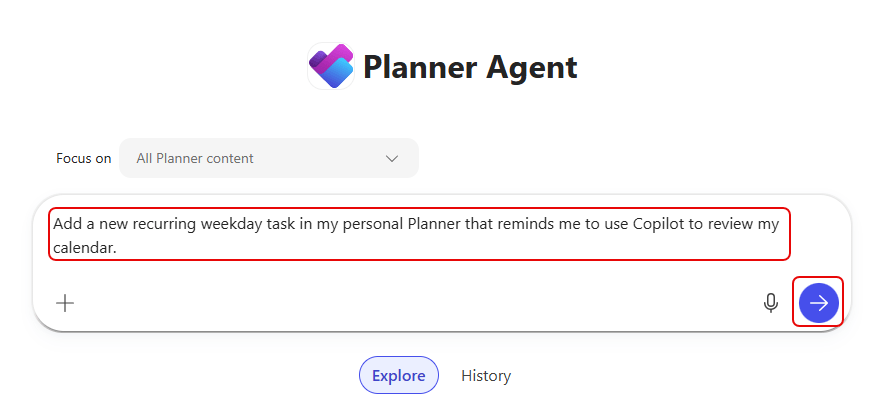
The Planner Agent will show up with a prompt box so you can start working with it:
In this quick example, I asked it to set up a new recurring task in my personal planner and what I want it to say. I then click the Send icon:
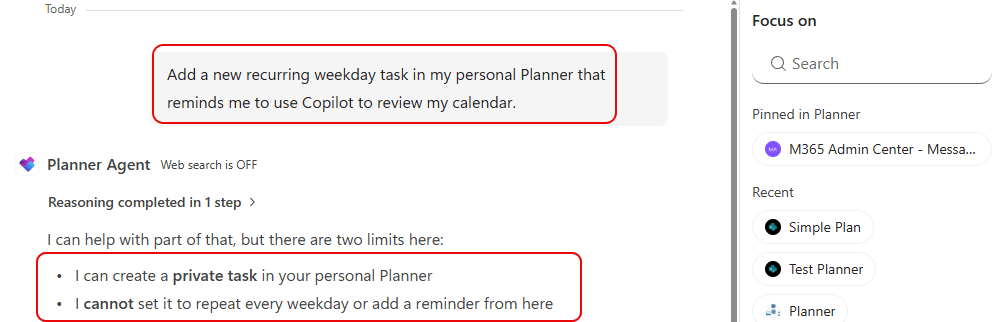
The Planner Agent tells me it can create a task, but it cannot set it up to be recurring, and I’ll have to do that myself once the task is created:
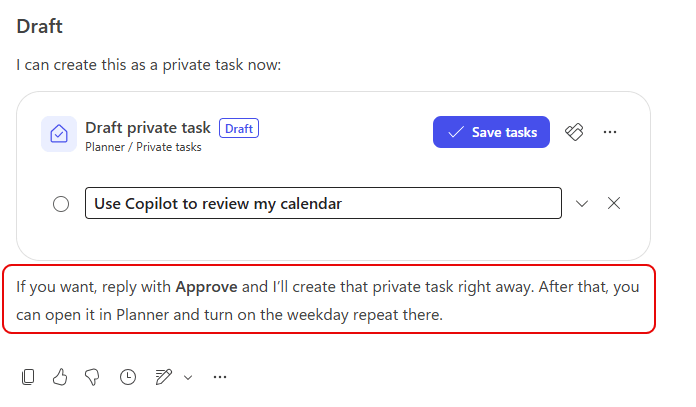
It creates the draft version of the task, and lets me know that I can reply with Approve to get it put into my personal Planner:
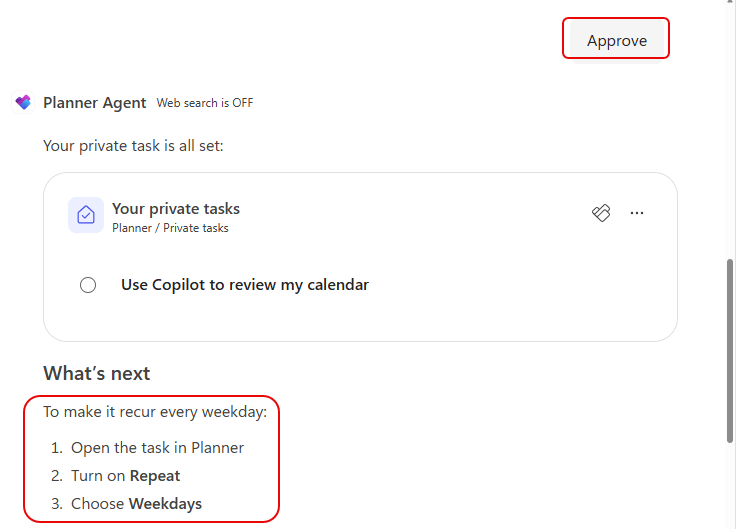
I replied with Approve, it built the task, and then told me what to do to make it recurring:
It was at the bottom of my list, so I scrolled down and selected it:

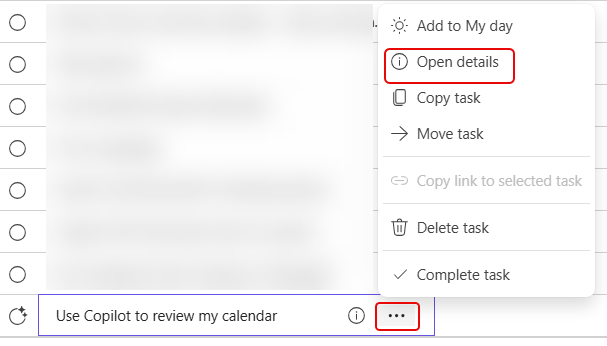
By hovering over it to get the ellipsis, I have the option to Open details:
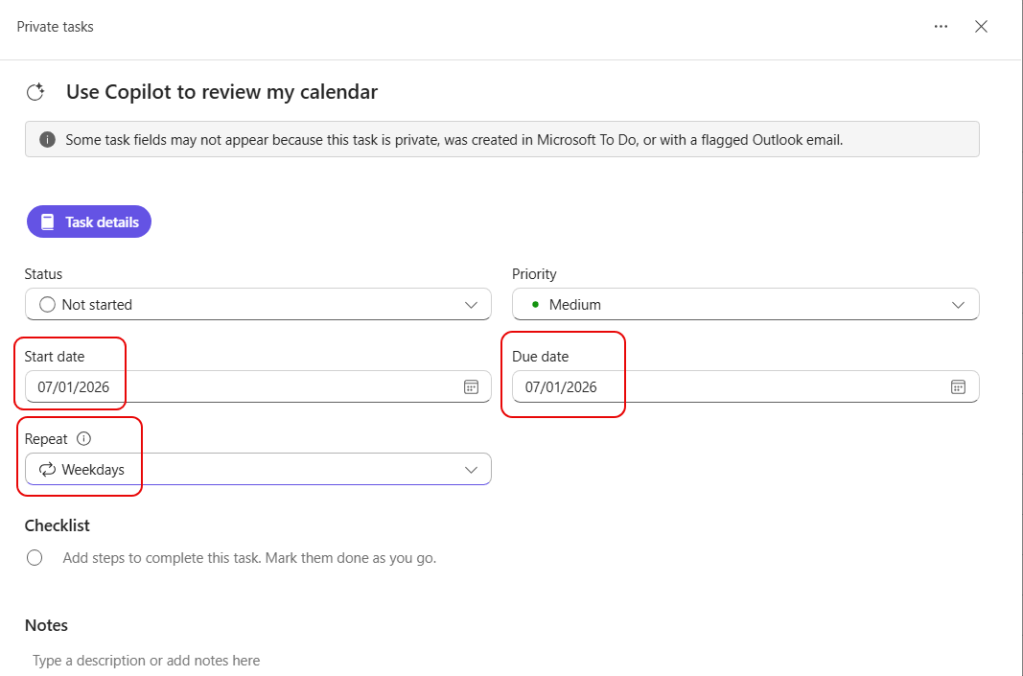
I gave it a start and end date, as well as how I wanted it to repeat:
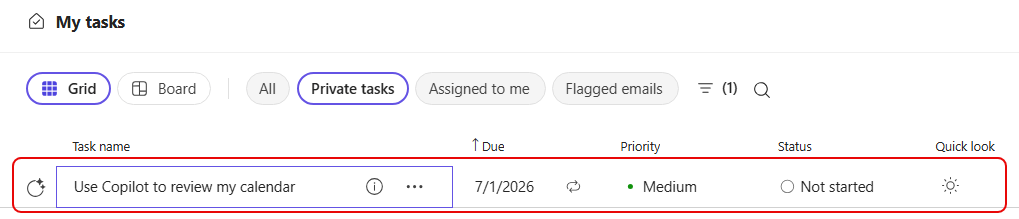
And there it is, at the top of my list as a recurring task:
That was a simple task, but remember that you have have it interact with other parts of your Microsoft 365 environment to have it build out project plans or tasks you are working on.


