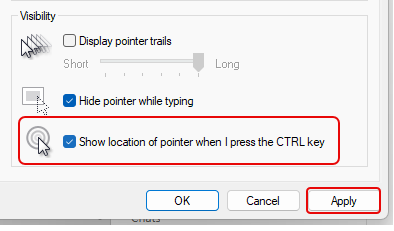
Thanks to my wife who is also a software trainer, I learned a new trick on how to make it easier for people to see your cursor on the screen when you’re presenting… just press the CTRL key! Here’s how to set that up and how it works…
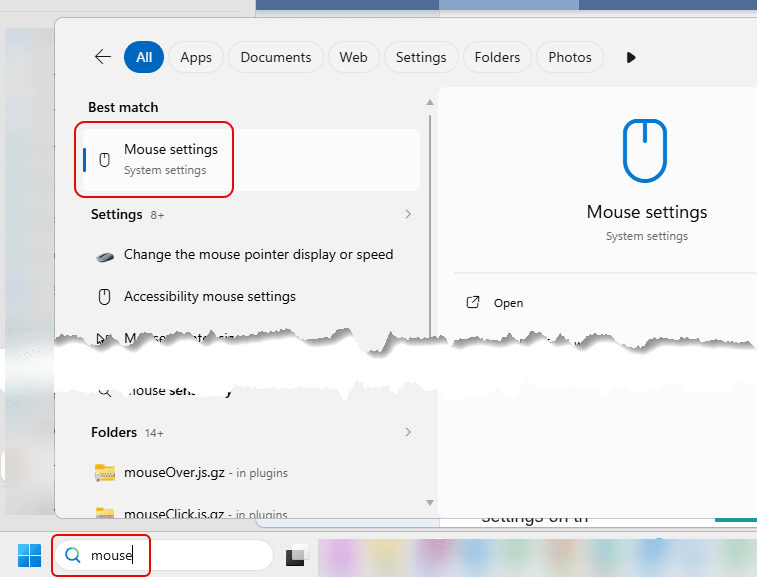
In Windows, use the Search field in the lower-left corner and type Mouse. That will show you the Mouse settings option. Click on Mouse Settings:
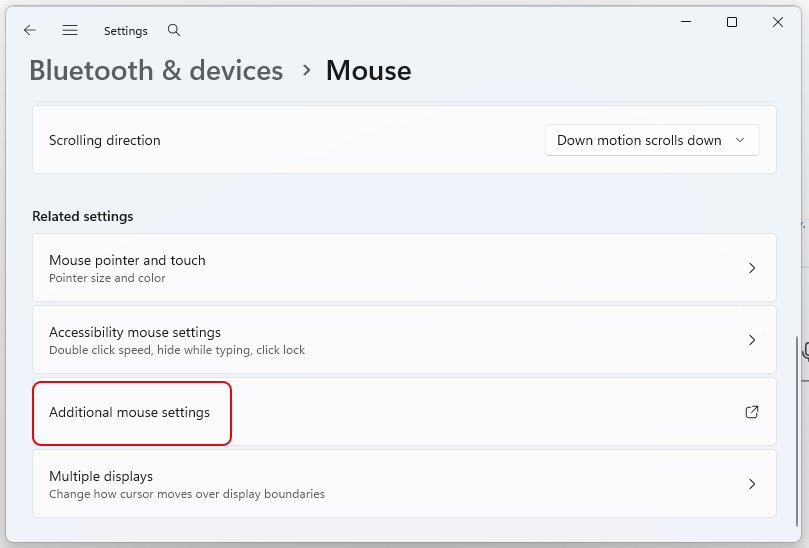
In the Mouse settings panel, scroll down and click on Additional mouse settings:
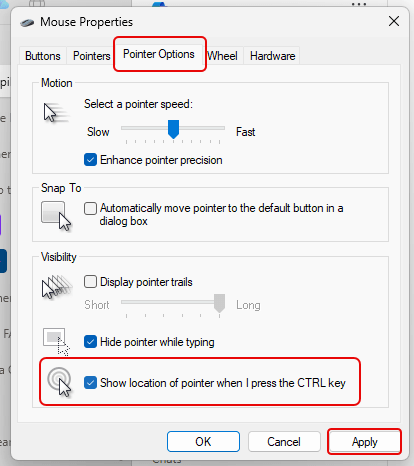
In the Pointer Options tab, select the option for Show location of pointer when I press the CTRL key. Then click Apply to update the setting:
Now when you press the CTRL key, you’ll see a circle around your pointer which rapidly shrinks and disappears:
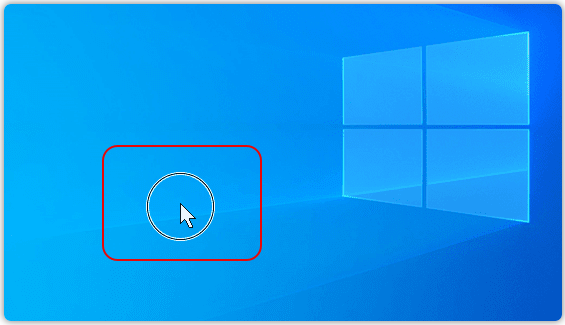
This is a great way to call attention to something on the screen, and it certainly beats moving your cursor round and round the area of interest. 🙂


