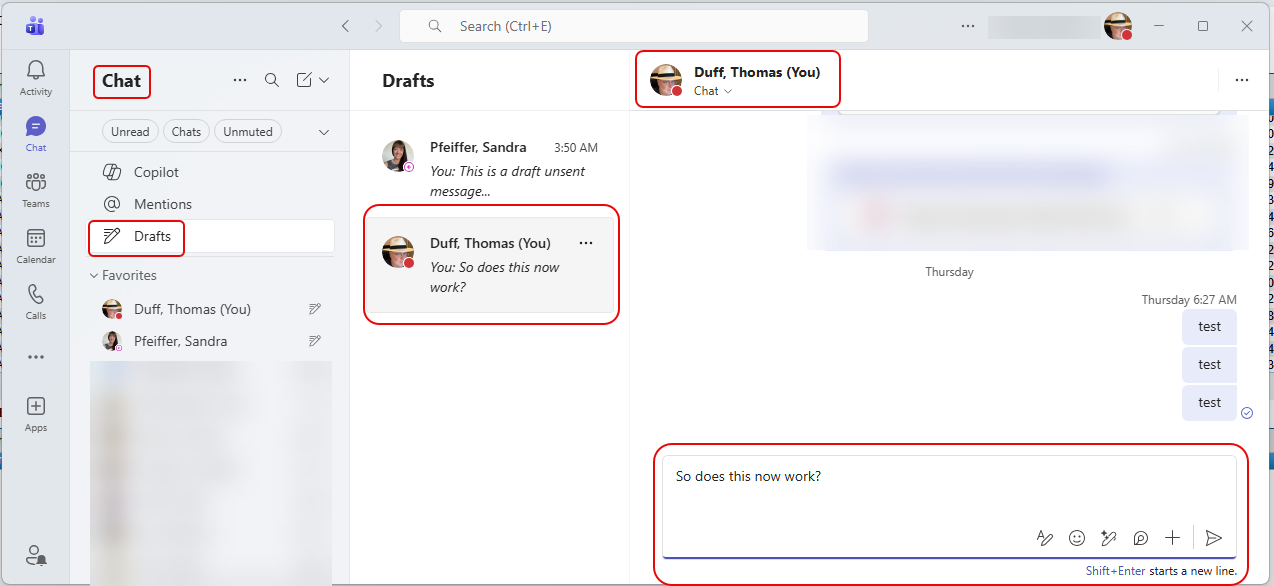
Admit it… this has happened to you more than once… You’re responding to a chat message or a channel post in Microsoft Teams, and before you hit enter to send your message… SQUIRREL! And do you remember to go back and send it? (no) And do you wonder why no one responded to you? (yes). Now with the Drafts Quick View, you can find all those partially completed Draft messages than never got sent! Here’s how that works…
If you have an unsent Chat message (a “draft message”), you’ll see the Drafts Quick View on the left navigation bar. When you click on that, it will show you all the unsent messages you have in Chat. If you click on the message in the center column, it will launch the chat in the right column so that you can do directly to where the draft message is. After you hit Send, this disappears from the center column:
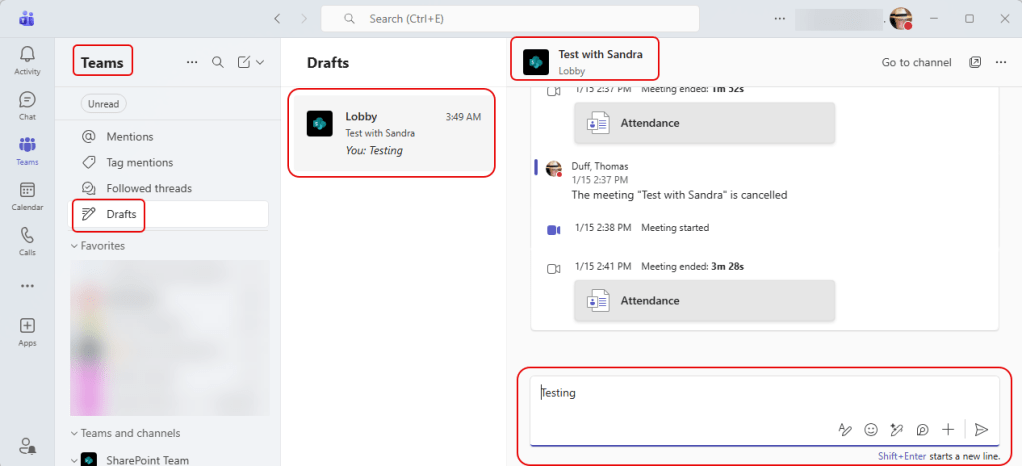
This also works the same way for any unsent Teams Channel posts. Click on the Draft in the center column, and you’ll see the channel posts in the right column:
If you don’t see this right away, it should be out very shortly.

 One Minute Office Magic