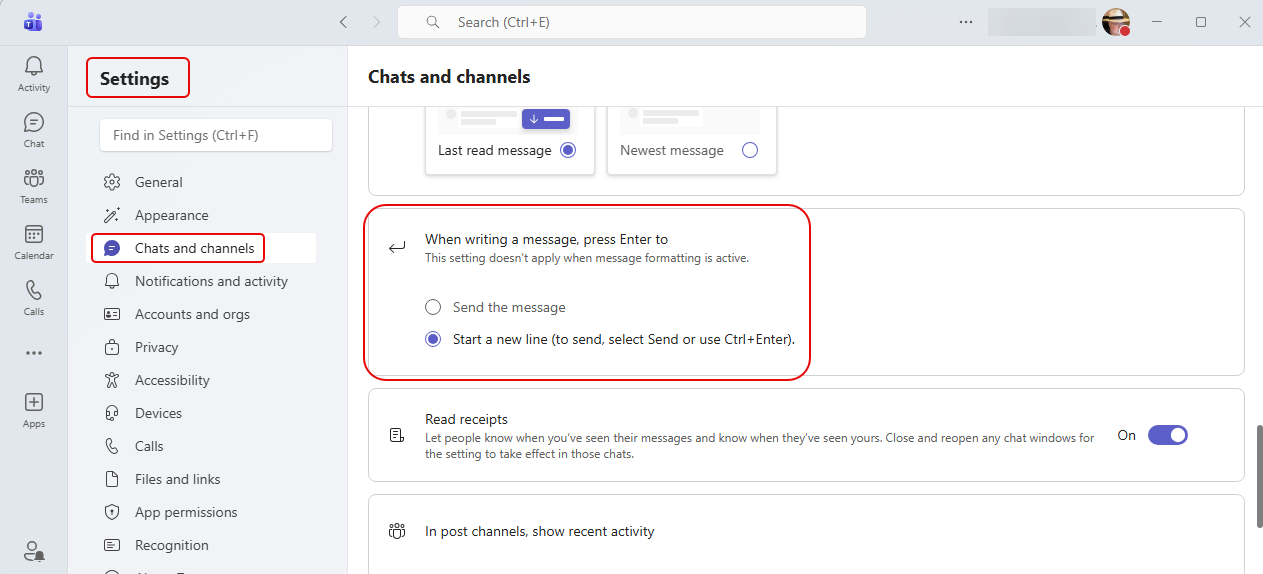
This is a change I’ve been waiting for… for a VERY long time! Have you been in a Teams chat, started typing something, and inadvertently hit the Enter key? And of course, off goes the partial chat and you have to quickly fill in the rest of it. Now, you have a chance to update you settings to determine what the Enter key does when it comes to Teams chat messages. Here’s how that works…
There’s a new Teams setting in Settings > Chats and channels > When writing a message, press Enter to. This now gives you a choice as to what happens when the Enter key is pressed. By default, the option is to Send the message (basically what has always happened):
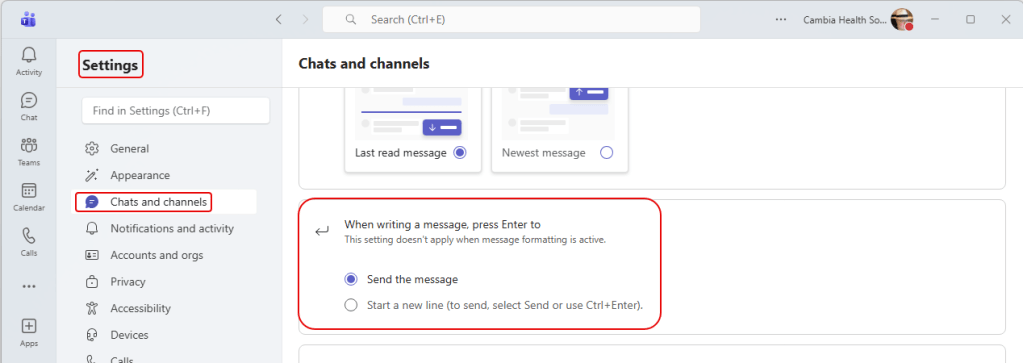
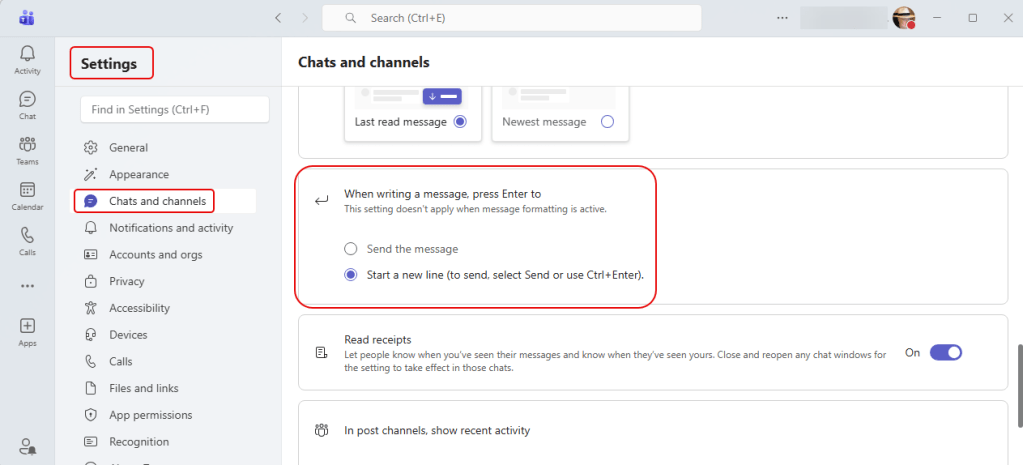
Now you have the option to have the Enter key Start a new line (to send, select Send or use Ctrl+Enter:
Now when you send a message, you’ll see a hint as to what will happen. If you want new line behavior like it’s always been, the default setting will show Shift+Enter starts a new line:

And if you change the setting, you will see the hint of Enter starts a new line:

This is a great change to help keep you from sending premature messages.
It doesn’t look like it’s made it to everyone in our tenant, but you should be seeing it soon if you don’t see it yet.

 One Minute Office Magic