This tip comes to you via Sandra’s significant other… spousal tips are awesome! Did you know that you can change the default emojis that appear when you click on a chat message in Microsoft Teams? I certainly didn’t… and neither did Sandra. 🙂 Here’s how you can set the default five emojis that you can easily access when you’re reacting to a chat message…
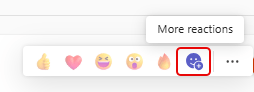
Hover over a Teams chat message and click on the More reactions icon:
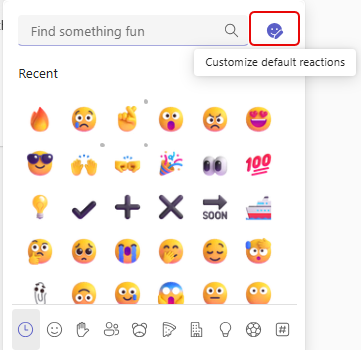
In the More reactions panel, click on the Customize default reactions icon in the upper-right corner:
Look at that! You can now customize the five emojis that appear when you click on a chat!
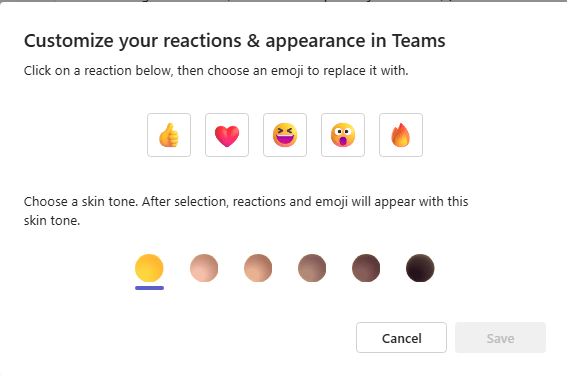
To remove one of the emojis, hover over the emoji and click the Remove reaction icon:

To add a new custom emoji, click on the Choose an emoji icon:

That brings up the entire emoji collection! Select the one you want to have in your default emoji collection, click Save at the bottom of the panel, and you’re good to go!


 One Minute Office Magic
This is very digestible and enlightening.
LikeLike