
Here’s a new feature (currently rolling out in Teams) that people will probably like… When you get the Teams pop-up notifications for things like chat messages, they always show up in the lower right corner of your screen. Now, you have the option to choose which screen corner they’ll show up in! Here’s how to change your locations…
If you go into Teams and select Settings > Notifications and activities, you’ll see the new option to choose Position on the screen for your notifications… Bottom right, Top right, Bottom left, and Top left:
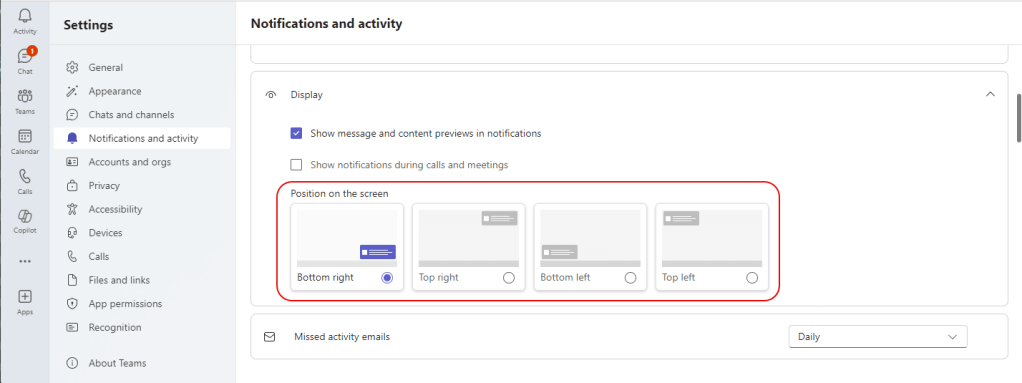
I changed mine to Bottom left, and the next Teams notification I received showed up in the new location:

It’s nice to have some flexibility as to where those will appear for you now.

 One Minute Office Magic
I wish there were an option “Do not pop-up.”
I want to hear that I got a notification, and not see it all the time.
LikeLike