
Imagine you’re in a group chat in Microsoft Teams, and you want to share some contact information for a person who is not in the chat. What’s the easiest way to do that? Use the Share someone’s contact info feature in Microsoft Teams. Here’s how that works…
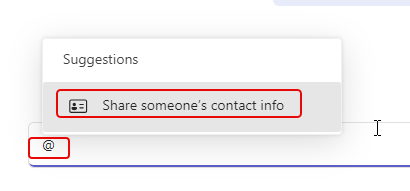
When you’re in a Microsoft Teams chat or group chat (not a post in a Teams channel), you can use the @ symbol to get the Share someone’s contact info option that you can click on:
In the pop-up dialog, select the name of the person you want to get contact information for. Keep in mind that the person you select will not be notified or given permission to join the chat. Click OK to add the link into the chat message:

The person’s name with a contact card icon will show up in the chat bar. Click the Send icon to share it with the rest of the chat:

When you hover over the name in the chat, you’ll get the pop-up profile card for that person, and you’ll be able to see phone numbers, email addresses, and all the other information stored in the profile card:


 One Minute Office Magic