When Sandra was sharing some new features with me, she happened to stumble across this new addition to the SharePoint page banners… the Author banner! This looks really slick, and is great for pages that want to make the author of the page more evident. Here’s how it works and looks…
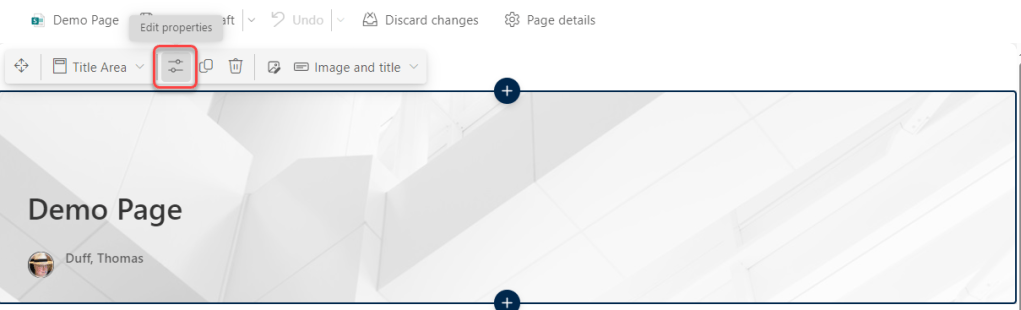
In this example, we have a plain Image and title banner at the top of the page. To edit the banner information, I click on the Edit properties icon:
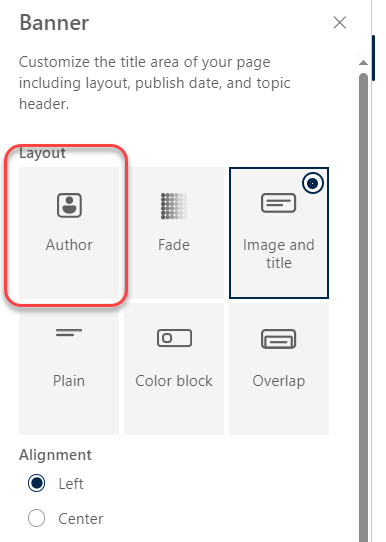
Instead of the normal four Layout types, you have a new layout called Author:
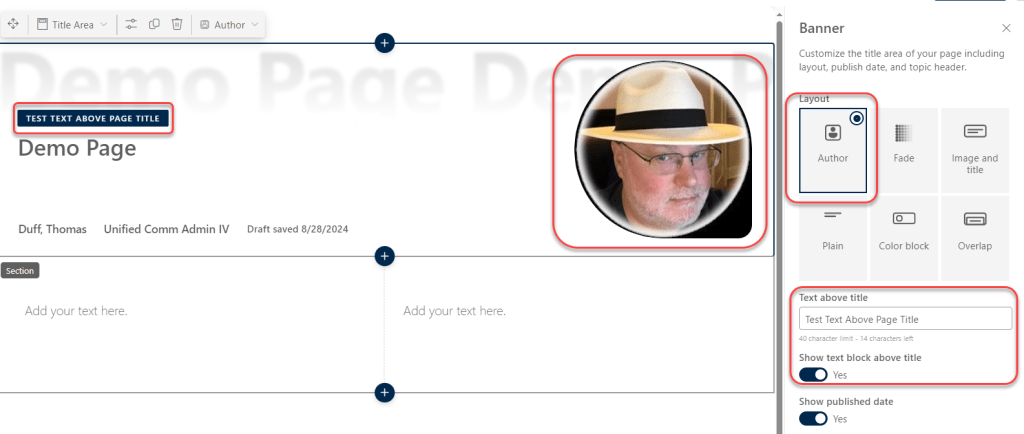
That banner puts your M365 profile image on the right side of the banner, and uses a gradient image of the page title in the background. You also have the option to put a text block over the top of the page title. Also, like other banners that have the author’s name, you can hover over the name area and choose to not show it at all… just go with their picture!
Obviously, this isn’t something you’d put on every page you create. But it’s perfect for pages that might be introducing new staff members or have information to convey from some leader in your organization.


