Ever since the advent of New Teams, there’s been complaints about the Screen Sharing Bar and where it appears when you’re sharing your screen in Microsoft Teams. You’d go to click on part of your screen that occupied the same area as the bar, and the bar would appear. There was not an easy way to reposition the bar so you could access whatever occupied the same space. Now you can move that bar around, and it’s SO much easier to work with. Here’s how that works… and please forgive the quality of the screen “captures”… my screen capture tool wouldn’t capture the bar, so I had to use my cell phone… 🙂
Here’s where the screen sharing bar appears when you first share your screen in Microsoft Teams. It is not visible until you put your cursor in that area… which is a problem if you’re trying to access something that sits in that same space:

When you put your cursor on the bar, it expands to the full bar that you see below. And now, you can click and drag that bar to anywhere else on the page:

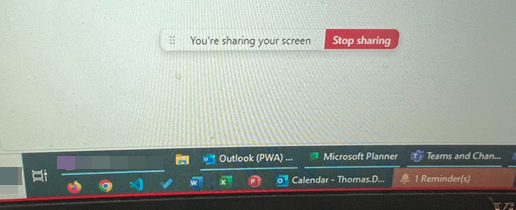
In this case, I did a click and drag to the lower part of my screen so it didn’t interfere with the top part of my screen:

And once I stopped hovering on the expanded bar, it went back to the smaller version, using the same space where I did the drag and drop:
This is a much faster and easier way to get that bar out of your way, and it makes it easier to access your entire screen while screen sharing.

 One Minute Office Magic