
Today we had a bit of a surprise in that the new Forms feature in Microsoft Lists showed up. At first you had to be in the Microsoft Lists experience, but now it seems to be showing up on all your modern SharePoint lists that you access via SharePoint. I’m going to explain a bit about how it works, and why I think you should hold off a bit before committing to this path…
You’ll see the new Forms option in the menu bar of the list:

When you click on the link, you’ll see this interface to create a new form or select one that’s already been created for this particular list:

When you create a new form, you’ll see this interface, listing all the fields that are supported (more on that later), the title and description of the form, which fields you want to show/hide, the theming of the form, and the form settings:

The themes give the form a bit of color. You have four themes to select from, or you can create your own style:

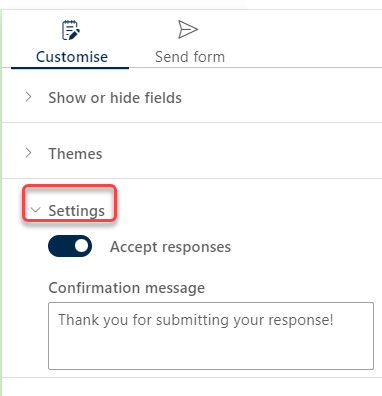
In Settings, you can turn the form off, as well as generating a confirmation for when the form is submitted.:
In the Send form option, you have the opportunity to copy a link to that form that you can use to send people to the form for data entry. This could be an email, a link on a page, a link in a Teams chat, etc.:

If you click on the Forms link again, you can get back to your form to do more changes. Keep in mind that you can have multiple forms that point to the same list:

When you click on the link (from the Send form option), this is what your data entry form will look like… looks a bit like Microsoft Forms, but it’s not:

When you click Submit, the data on the form is used to create a new list item in the list associated with this form… much like you would see when you have a default SharePoint list form for data entry.
NOW… here are some thoughts, caveats, and opinions…
- The first iteration of this feature is pretty limited in terms of the field options. It doesn’t support all the field times you can have in a list. You are limited to single line text, multi-line text, choice, number, date/time, yes/no, person, hyperlink, and currency. If you have a field type in your list that is NOT one of those field types, you won’t be able to enter it via this form.
- This form is strictly for data entry. When you’re in the list and select an item from the view, it will open in whatever the form option is (default list form or Power Apps form). You will never see this Forms layout again for that item. This is ONLY for data entry.
- There’s not much flexibility in the form. It doesn’t pick up field descriptions that are part of the list column settings. There’s also no conditional logic to do something like make a field required or hidden based on another field. It’s either showing and required, or it’s not.
- As mentioned above… this is not Microsoft Forms for surveys or polls. It looks a lot like it, but it’s not. It’s also not available externally like a Microsoft Forms can be. This is for internal use only.
- You have to have either Full Control or Edit access to create a new form. If you have Contribute or Read access, you cannot create a new form.
On the other hand…
- A person does not have to have access to the underlying list in order to enter a list item with this form. So for instance, you can lock down a list to only have a handful of people who can view and edit the items in the list. But you could post the link to this form to allow anyone to *enter* data. Think of something like a suggestion box where anyone in the company can submit an item, but no one should be able to see the entered items except for your small group of people. This is probably one of the best use cases for this feature.
- You can post the link to the form in one site in order for people to enter the list data in a different site. Think of an intranet home page where you want people to submit information, and the information is being stored in a different SharePoint site that is locked down.
- This is similar to what people do when they have a Microsoft Forms form for gathering data, and then have a Power Automate workflow in the background to take the form data and write it to a SharePoint list. This is more direct, albeit with far less flexibility.
My opinion? Tread carefully… You can do everything that this new feature does using the existing tools you already have (default SharePoint list form, Power Apps form, Microsoft Forms form linked to a SharePoint list via Power Automate). Until we get some more real-world usage and figure out the finer details (or Microsoft rolls out additional capabilities), it may be best to not go overboard with this.
For more information, check out Collect information like a pro – New Microsoft Lists forms experience.

 One Minute Office Magic