When you’re having a group or one-on-one chat with someone in Microsoft Teams, you may get to a point where having an actual meeting is necessary. Here’s an easy way to create that meeting that automatically invites everyone in the chat…
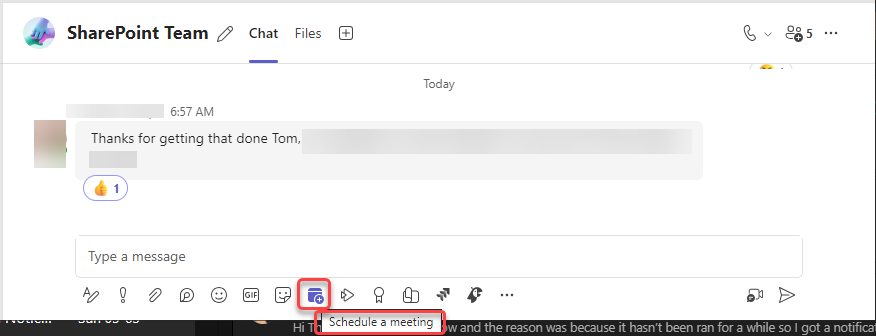
When you’re in the group or one-on-one chat, click on the Schedule a meeting icon right below the message box:

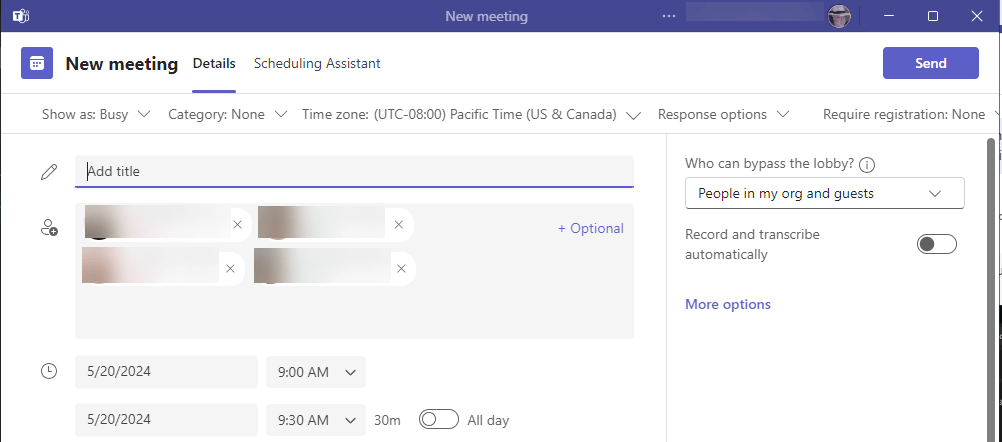
That will bring up a calendar invite for the next time slot, and will automatically invite all the people in the chat. From there, you can change the time, update the title of the meeting, and all the other things you’d normally do when you create a meeting. When you’re ready, just click Send:

 One Minute Office Magic
In my experience, the chat that happens during this meeting is then a separate thread than the original chat. Is there any way to keep the original chat thread and add to it during the scheduled meeting?
LikeLike