
If you have a large number of Teams spaces that you are part of, it can be difficult to keep track of everything that’s going on in the various Teams. To make things a bit easier, you might want to check out the Discover feed in Teams. Here’s what it looks like and how it works…
To find the Discover feed, click on the Teams icon in the left-side navigation rail. That will show you the Discover feed link at the top of all your Teams:
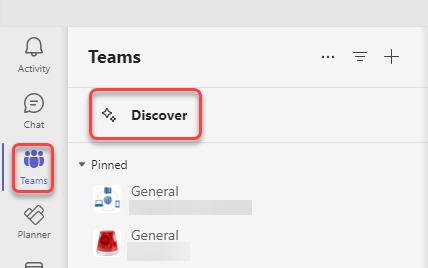
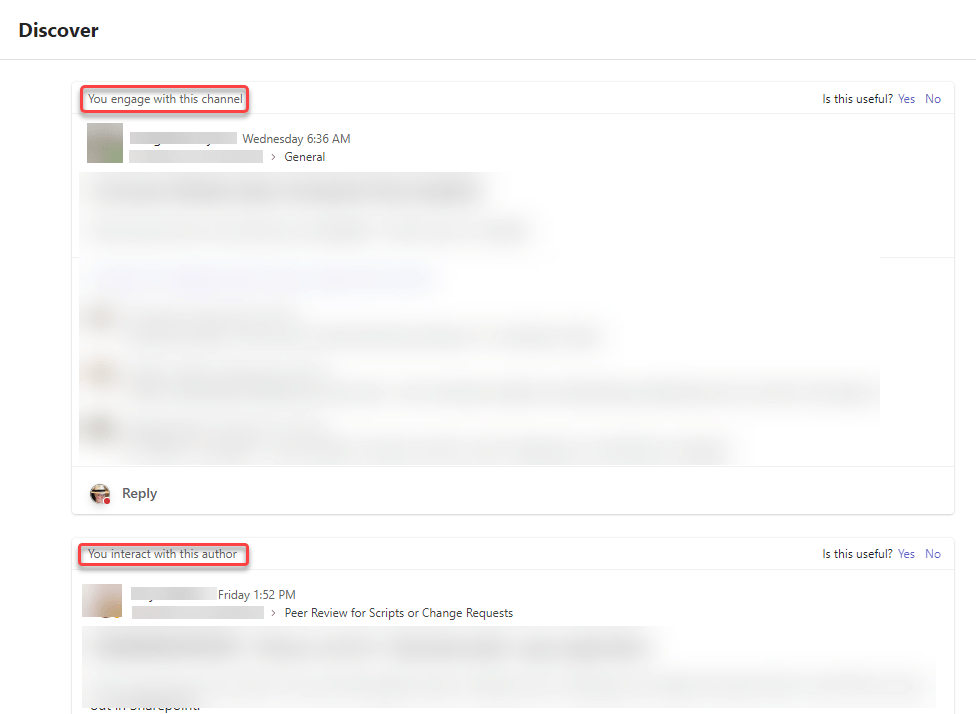
When you click on the link, the feed will show you information about posts in your Teams spaces, such as items where you engage with the channel or items where you interact with the person:
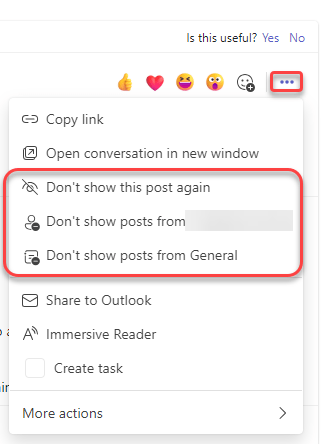
For any of the entries you see, you can hover over the item and use the ellipsis to get more options related to that entry. You can remove that post so that you don’t see it any more, you can eliminate posts from a particular person, or you can eliminate posts from a particular channel. That can help customize your Discover feed:
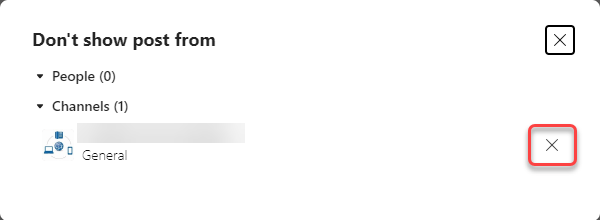
You can always revert any of your “don’t show” options by clicking on the Settings icon of the Discover feed:

The settings will show you any of the channels or people you’ve turned off, and you can click on the X icon to turn on the showing of the channel or person again:
For more information, check out First things to know about Teams Discover Feed.

 One Minute Office Magic