In Microsoft Teams, there is a policy setting that controls the auto-expiration of Teams meeting recordings. Microsoft has stated that over 99% of videos are never viewed after 60 days, and they take up storage that you pay for as an organization. However, there are videos that you may need to retain for various purposes, such as training classes. Here’s how you can change the retention period for a Teams meeting after the recording has been processed.
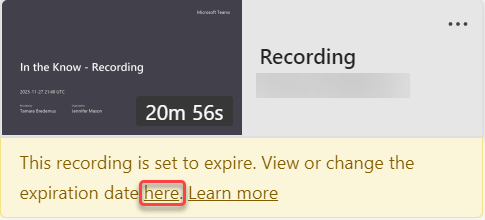
In this example, the meeting has ended and the recording has been processed. The yellow information bar lets you know that the recording will expire, and you can click on the here link to see the expiration date and make changes if necessary:
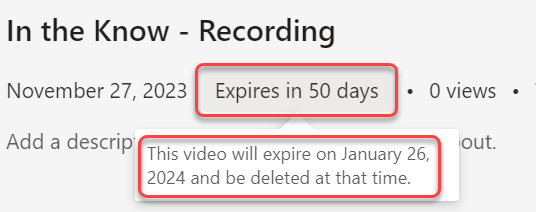
Clicking on here will provide a pop-up that tells you the number of days until the recording expires. If you hover over that pop-up, another pop-up will give you the exact date the recording will be deleted and moved to the Recycle bin. To change the number of retention days, click on the Expires message:
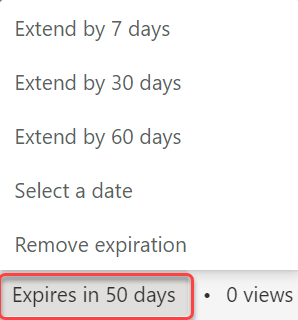
You now have a number of choices to extend the retention period, either by a number of days or a specific date. If you need to retain it permanently, you can click on Remove expiration:
When a recording is deleted due to the expiration setting, the end user will be notified via email. The SharePoint tenant or site admin, or the end user with edit/delete permissions will be able to retrieve the file from the recycle bin for up to 90 days.
Also, if you move the video to another location, such as a different SharePoint site, the expiration setting will no longer affect it.
For additional information, check out How to Manage Microsoft Teams Meeting Recording Auto-Expiration.


Great information to have. We are using Copilot recording and transcription. Will the meeting summary and follow-ups be deleted along with the recording, or will those stay available through the meeting recap?
LikeLike
I assume they would all be gone.
LikeLike