
There are times when you want to create distribution lists that serve your organization as a whole. But there are also instances when you want a personal contact list that only affects you and the people you want to reach on a regular basis. This is how you set one up in Outlook…
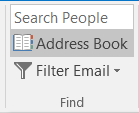
In Outlook, go to the Find section of the Ribbon Bar and select Address Book:
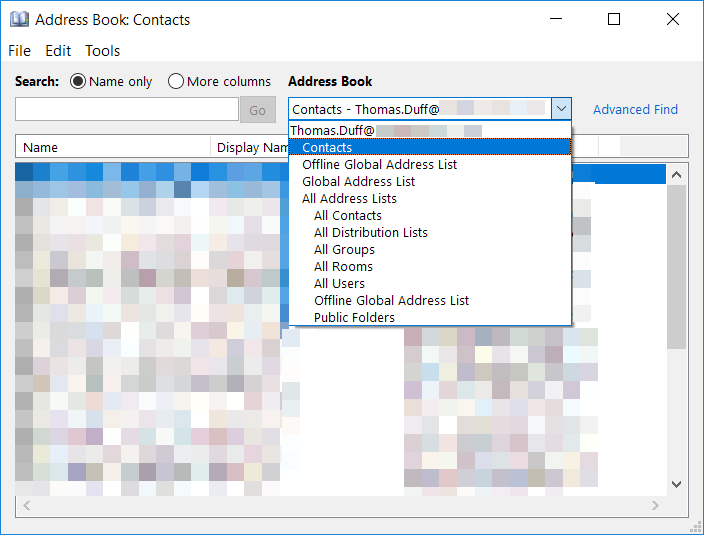
Select the Contacts option under your email address:
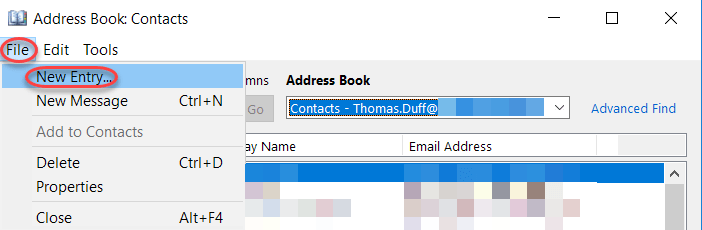
Next, click File > New Entry to create a new entry in your personal Contacts list:
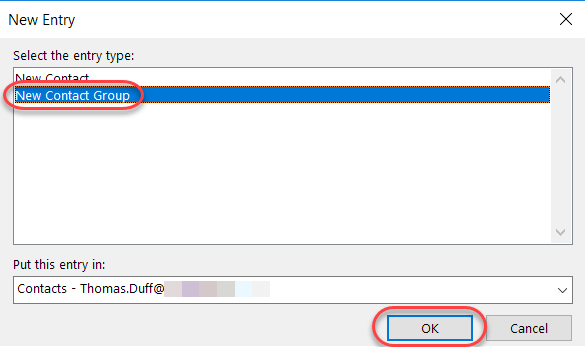
Select that you want to have a New Contact List instead of just a single New Contact:
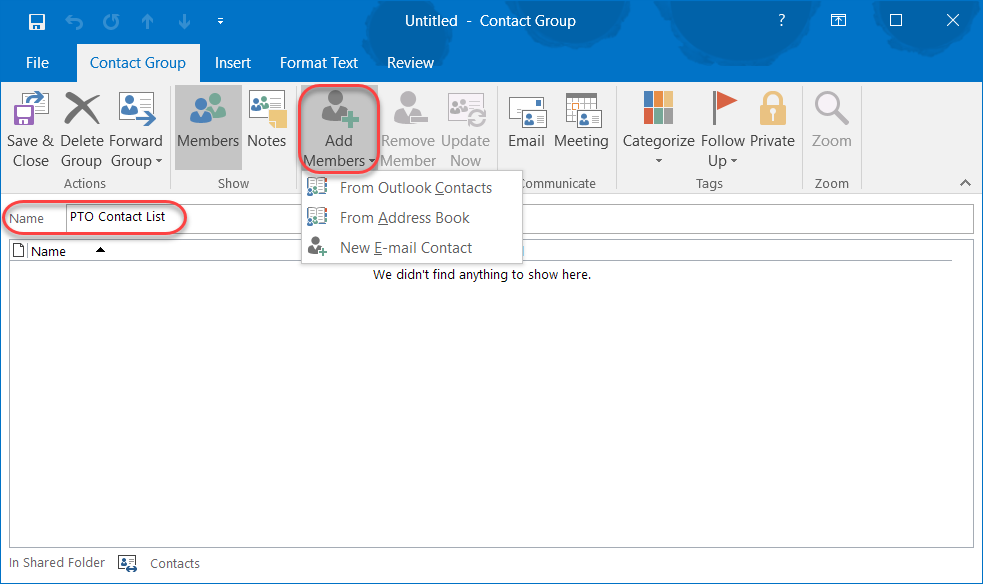
Name your new Contact Group, and click the Add Members button to start adding new people to your group:
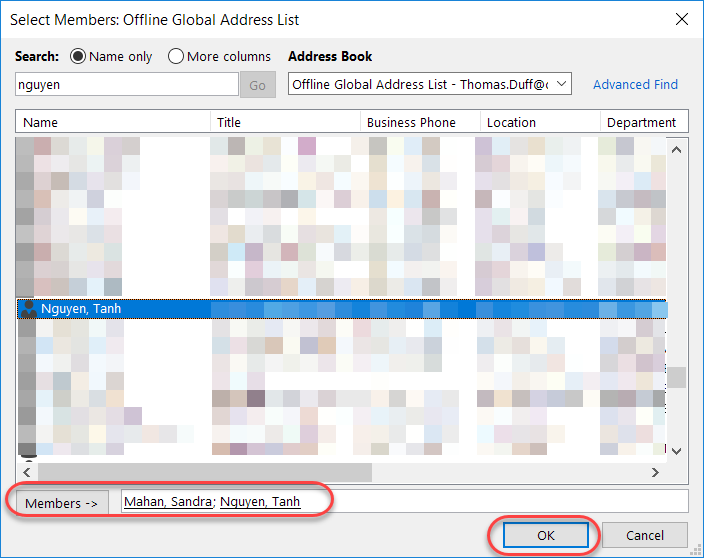
Once you have all your names selected and loaded into the Members field, click OK:
You now see your new Contact Group, and click Save & Close to add it to your own address book:

Now when you look in your personal list of contacts in Outlook, you’ll see your new Contact Group:
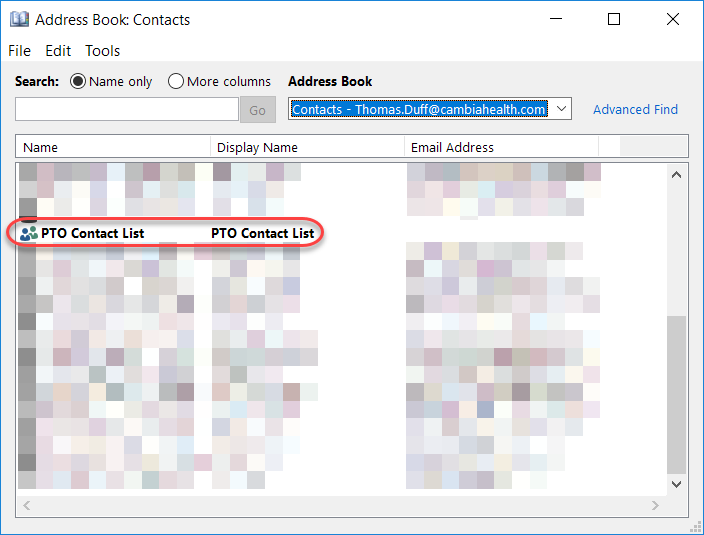
And when you go to create an email, your Contact Group will show up:


 One Minute Office Magic