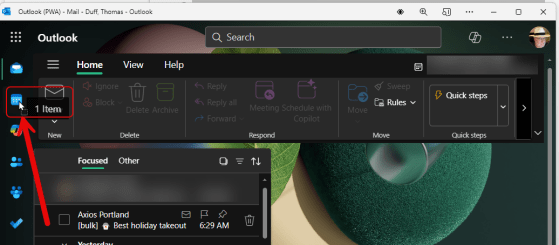
This may be a new trick for some of you… In the classic Outlook client, you can drag an email over to the calendar icon on the left-side navigation bar, and Outlook will automatically create a calendar entry using that email content. Unfortunately, you didn’t have that same ability if you were using Outlook on the web or the New Outlook client. Now you can! Here’s how that works using Outlook on the web, and you should be able to do the same in the New Outlook client…
Tag: Outlook
Creating hyperlinks in Outlook on the web
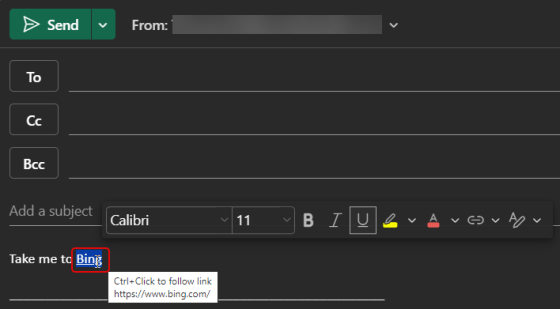
We ran across a cool little tip this week that pertains to Outlook on the web. Instead of having to click a hyperlink icon to add a link (or use CTRL-K to get a dialog box), you can just highlight the word in your email and paste the link over it… voila! You have a hyperlink! Here’s how that works…
Using the My Templates feature in the Outlook client
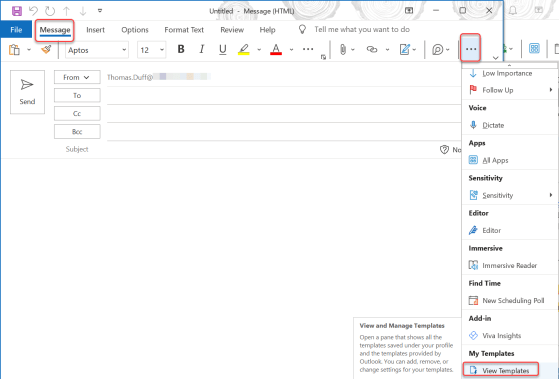
Do you often have short repetitive emails that you send out, and you wish there was an easier way to create the emails without having to retype them or use copy and paste? You might want to check out the My Templates feature in the Outlook client. Here’s how it works…
Sending meeting reminder emails from Outlook on the web
Sandra found a really cool feature that’s somewhat buried in the calendar that you have on Outlook on the web. It’s the ability to have Outlook send a reminder email to your attendees prior to your meeting based on whatever lead time you want! This is a really cool feature that takes meeting reminders up a notch. Here’s how that works…
Right-Click RSVP options for meetings in Outlook on the web
It used to be that if you were using Outlook on the web for your calendar and you wanted to RSVP a meeting invite, you had to either open up the calendar entry or navigation through an RSVP fly-out menu if you right-clicked on the meeting entry. Now, the Yes/No/Maybe options are available at the main level of the right-click menu. Here’s how it looks…
Conditional Formatting for Outlook on the web
If you have a lot of emails in Outlook on the web, you might wish you had a way to make emails that fix a particular category stand out from the others. Now you can do that with Conditional Formatting, Here’s how that works and looks…
Using Split View on your Outlook on the web calendar
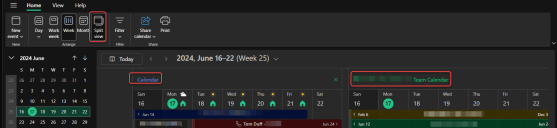
If you have two or more calendars selected in Outlook, it can be hard to tell what entry belongs to what calendar. If you’re using Outlook on the web, you can use the Split View option on your calendar so that each one displays as a separate calendar. Here’s what that looks like…
Folder tags when searching in Outlook on the web
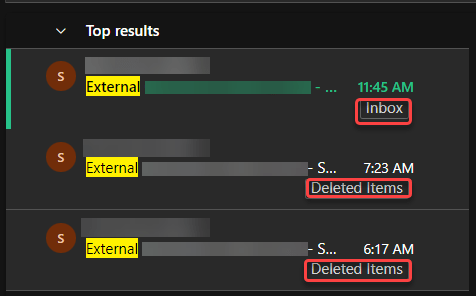
This is yet another reason why I really like using the browser-based version of Outlook. When searching, it automatically shows you the folder where the item was found. Here’s what that looks like…
Scheduling in-person meetings in Outlook on the web
There’s a change that’s in the process of rolling out right now, and it’s pretty interesting. When creating a meeting in Outlook on the web, you can designate it as an “in-person” meeting that people should plan on being present for. RSVPing to the meeting gives you additional options to say you’ll attend in-person or virtually, so that the organizer can know how many people will be physically present. Here’s how this looks and works…