Episode 286 of the Microsoft 365 Pulse Roadmap webcast is now out on YouTube. Join Tamara Bredemus and Thomas Duff as we cover this week’s updates.

Learning new Microsoft Office tricks in "just a minute"
Episode 286 of the Microsoft 365 Pulse Roadmap webcast is now out on YouTube. Join Tamara Bredemus and Thomas Duff as we cover this week’s updates.
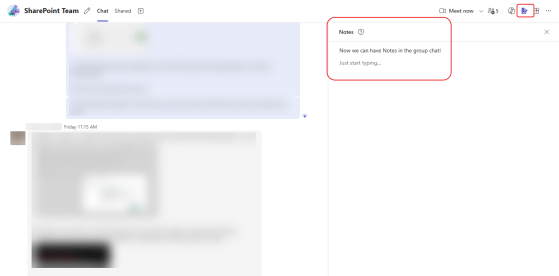
When you have a group chat in Microsoft Teams, it can be tough to summarize the information in a way that makes it easy for the participants to know what’s going on. Microsoft now allows you to use the Notes feature in a group chat to have that summary info off to the side. Here’s how that works…
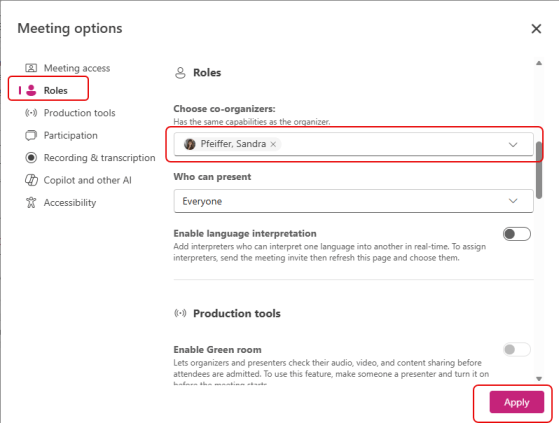
By default, a Microsoft Teams meeting has a single organizer that can handle all the meeting settings. But there are times when you will want to have a co-organizer who can also do things if you’re not available. I would suggest that you might ALWAYS want to have one unless it’s a very small meeting. Here’s how you can set that up…

Episode 285 of the Microsoft 365 Pulse Roadmap webcast is now out on YouTube. Join Tamara Bredemus, Matthew Ruderman, and Thomas Duff as we cover this week’s updates.
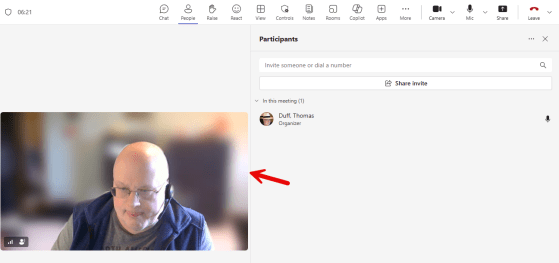
For the longest time, you’ve been locked into the main size of the main video sharing screen in a Microsoft Teams meeting. But now, you can click the divider between the content screen and the people/chat screen to resize based on your requirements. Here’s how that looks…
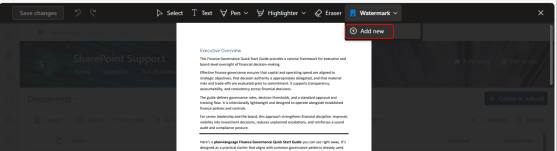
If you have a PDF file stored in a SharePoint site or your OneDrive, it’s really easy to add a watermark to the document without having to use any other 3rd party software. Here’s how that works…

Episode 284 of the Microsoft 365 Pulse Roadmap webcast is now out on YouTube. Join Tamara Bredemus, Matthew Ruderman, and Thomas Duff as we cover this week’s updates.
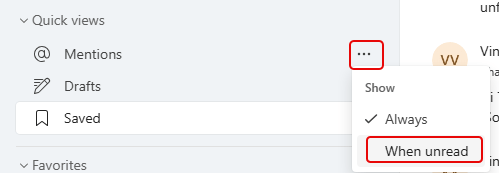
Microsoft has been adding a number of new Quick Views in Microsoft Teams to let you know when you’re named in a Teams conversation (Follow), when you’ve been mentioned (Mentions), or when you’ve forgotten to send a Teams chat (Drafts). That’s all well and good, but those new views take up room in the navigation pane. Now Microsoft has added a feature to allow you to decide if you want to always see the Quick View or only see it if there’s something there. Here’s how that works…
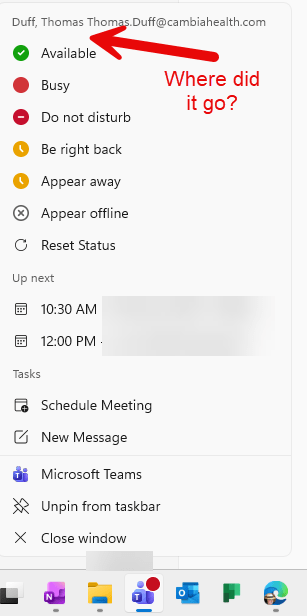
I had a customer ask a question the other day, and the question was “where did the Quit Teams option go?” When I checked my Teams client, I noticed I didn’t have it either. With the help of a few people, we were able to find where it *did* go…
 One Minute Office Magic